Windows 365 Cloud PC Provisioning Deep Dive: Licensing, Policies & Images · CloudEngineerHub
Windows 36510 min read5 views
Windows 365 Cloud PC Provisioning Deep Dive: Licensing, Policies & Images
How Cloud PC provisioning really works: Business vs Enterprise licensing, Entra join vs hybrid join, ANCs, gallery vs custom images, plus the Graph cmdlets to run your fleet.
C
CloudEngineerHub Team
Published: August 28, 2026· Last Updated: September 24, 2026·10 min read
Windows 365 Cloud PC Provisioning Deep Dive
Windows 365 turns a per-user license into a fully managed Cloud PC, provisioned automatically from a policy you define. The service is simple on the surface — but the difference between a clean rollout and a week of provisioning failures lives in the details: join type, network choice, image preparation and licensing. This guide walks the whole chain, from SKU math to the Graph calls that automate fleet operations.
Visual Walkthrough
The provisioning chain that turns a license into a working Cloud PC.
Interactive FlowWindows 365 — License to First Sign-In6/6
1
License assigned
Windows 365 SKU entitles the user to one Cloud PC.
policy
2
Provisioning policy matches
Image + type (Enterprise) + region resolved by policy.
provision
3
On-behalf-of provisioning
Service provisions the Cloud PC without user action.
policies
4
Intune policies apply
Configuration + compliance ride the MDM channel in.
connect
5
User connects
Windows 365 app / web / gateway streams the desktop.
6
Lifecycle managed
Resize, restore, troubleshoot, reprovision on demand.
Windows 365 — License to First Sign-In. 1. License assigned: Windows 365 SKU entitles the user to one Cloud PC. — 2. Provisioning policy matches: Image + type (Enterprise) + region resolved by policy. — 3. On-behalf-of provisioning: Service provisions the Cloud PC without user action. — 4. Intune policies apply: Configuration + compliance ride the MDM channel in. — 5. User connects: Windows 365 app / web / gateway streams the desktop. — 6. Lifecycle managed: Resize, restore, troubleshoot, reprovision on demand.
C
CloudEngineerHub Team
Author
The CloudEngineerHub editorial team — Microsoft endpoint management and cloud engineers writing hands-on guides on Intune, Azure, Entra ID, Autopilot, Defender and PowerShell. Every article is reviewed against current Microsoft documentation.
Licensing — every Cloud PC user needs a Windows 365 license; Enterprise additionally expects an Intune-capable endpoint management license per user.
Roles — Intune Administrator (or Windows 365 delegated roles) at intune.microsoft.com for Enterprise management.
For hybrid join — an Azure network connection (ANC) with a vNet that has line of sight to domain controllers, plus an Entra Connect-synced user base.
For custom images — a generalized image in an Azure Compute Gallery or as a managed image, in a subscription you can reach from the ANC.
Naming and group standards — decided before the first provisioning policy, because renames and re-groups after users are live means re-provisioning.
How Provisioning Works Under the Hood
When a license is assigned and matched by a provisioning policy, the service runs a fixed pipeline: create the vNIC in the target network (Microsoft-hosted or your ANC), join Microsoft Entra ID (or the on-premises domain via the ANC), apply the image, enroll the machine into Intune MDM, and finally hand the Cloud PC to the user. Every stage is visible as a device action status entry under Devices → Windows 365 → All Cloud PCs, and that page — not guesswork — is the diagnostic surface when a build stalls.
Two architecture forks decide everything downstream:
Join type. Microsoft Entra joined is the zero-infrastructure default and pairs with a Microsoft-hosted network. Microsoft Entra hybrid join requires the ANC, your vNet, DC line of sight and a synced user base.
Network. The Microsoft-hosted network needs nothing but region selection. The ANC is validated by health checks before provisioning runs — a red ANC blocks every build behind it, so treat ANC health as a production dependency, monitored like one.
Licensing and Join Types
Two SKUs matter in practice. Windows 365 Business (up to 300 Cloud PCs) targets smaller tenants, needs no Intune, and manages Cloud PCs from windows365.microsoft.com. Windows 365 Enterprise requires each user to hold both a Windows 365 license and an Intune-capable endpoint license, and is managed centrally from intune.microsoft.com → Devices → Windows 365. Sizes run from 1 vCPU/2 GB/64 GB up to 8 vCPU/32 GB/1 TB per user, and a user gets exactly one Cloud PC per license.
Join type is the first fork: Microsoft Entra joined with a Microsoft-hosted network is the zero-infrastructure default, while Microsoft Entra hybrid join requires an Azure network connection (ANC) — your vNet, line of sight to domain controllers, and an Entra Connect-synced user base. ANC runs health checks before provisioning; a red ANC blocks everything behind it.
Provisioning Policies and Images
A provisioning policy combines join type, network, image, language and region, plus user settings such as the local admin account and "one Cloud PC per user" behavior. The image is where customization happens:
Gallery image — Microsoft-maintained Windows 11 with Microsoft 365 Apps preinstalled; fastest path to first sign-in.
Custom image — a generalized image from an Azure Compute Gallery or managed image; patch it on a schedule or your fleet ages in place.
User settings inside the policy decide the experience: Windows user account type (Standard user or Local Administrator), language and region, and how provisioning behaves when a newly licensed user signs in. Expect provisioning to finish in roughly 30–90 minutes per Cloud PC depending on join type and image size — hybrid join with a freshly created ANC always lands at the top of that range. Post-build actions on each Cloud PC object include Resize (change the SKU in place), Restore to a checkpoint, and Re-provision, the rebuild button for a corrupted tenant-side state. Tune the end-user connection itself with RDP properties on the provisioning policy — window size, drive redirection, audio and screen-capture protection are all controlled there.
Step-by-Step: First Enterprise Deployment
Confirm licenses in the Microsoft 365 admin center and create the user groups (pilot, ring 1, ring 2) that provisioning will target.
Decide join type. Default to Entra joined + Microsoft-hosted network unless an application requires domain identity — that decision is hard to reverse cheaply.
Create the provisioning policy: network, join type, gallery image, language/region.
Create the user settings object: local admin choice, restore point cadence, and the "sign in first, provision later" behavior.
Assign the policy to the pilot group and watch the first builds end to end on the device action status page.
Validate the Intune enrollment: compliance policy assigned, Windows update ring applying, apps delivering via the Company Portal.
Widen rings every few days; keep the ANC health dashboard open if you are hybrid.
Configuration Deep Dive: Settings That Matter
RDP properties — the colon-separated settings on the provisioning policy govern redirection and experience: clipboard, drives, audio, webcam, and screen-capture protection for regulated environments. Test each from the Windows App client before rollout.
User settings — the restore-point cadence and the local-admin decision are tenant-wide defaults; changing them after rollout does not retroactively rebuild existing Cloud PCs.
Image lifecycle — gallery images update with Microsoft's servicing; custom images do not. If you ship a custom image, put its patch-and-recapture cycle in the calendar now, or the fleet ages in place.
Single sign-on — enabling the Cloud PC SSO option changes authentication behavior to passwordless-capable flows; verify line-of-sight and client versions first.
Real-World Enterprise Scenario
A 2,800-seat financial services firm replaced aging VDI islands with Windows 365 Enterprise. The pilot (120 users) ran on Entra-joined Cloud PCs with a Microsoft-hosted network and a gallery image — zero infrastructure, provisioning in about 40 minutes. The regulated claims team, however, required domain identity for a legacy claims app, so they landed in a second policy: hybrid join through an ANC in the app subnet, custom image with the app preinstalled, RDP properties locking down drive redirection and enabling screen-capture protection. When the ANC's domain trust check failed after a firewall change, provisioning stalled fleet-wide — and the red health check on the ANC page pinpointed it in minutes, which is exactly why the runbook says "check ANC health first" before touching anything else.
Operating the Fleet with Graph
The virtualEndpoint Graph API mirrors the console and is where automation pays off:
For failures, re-provision is the reset button; for smaller drifts, resize and the built-in Restore (checkpoint) actions handle user-level recovery without a rebuild:
PowerShell
1
2
3
4
5
6
7
8
9
Connect-MgGraph -Scopes"CloudPC.ReadWrite.All"# Rebuild a Cloud PC whose tenant-side state is corrupted$cloudPc = Get-MgDeviceManagementVirtualEndpointCloudPc -All |
Where-Object { $_.DisplayName -eq"CPC-ASMITH-DE34" }
Invoke-MgGraphRequest -Method POST -Uri"https://graph.microsoft.com/v1.0/deviceManagement/virtualEndpoint/cloudPCs/$($cloudPc.Id)/reprovision"# Expected output: a 202-style response body confirming the reprovision action was accepted;# track progress on the Cloud PC device action status page in intune.microsoft.com
Troubleshooting
Symptom
Likely Cause
Fix
Provisioning stuck in "Pending" for hours
ANC health check failing
Devices → Windows 365 → ANC health checks; fix the flagged connectivity test
Build fails at domain join stage
Wrong OU credentials, DC unreachable, or expired ANC service account
Re-run the ANC health checks; correct credentials/subnet; retry provisioning
User licensed but no Cloud PC appears
Provisioning policy group excludes them or license not yet activated
Verify group membership and license activation state in the admin center
Cloud PC provisions but Intune enrollment missing
MDM user scope not covering the user
Intune → Device enrollment → Windows enrollment; ensure user scope includes the user
"Sign-in error" from the Windows App client
User not in the Cloud PC connection group or conditional access blocking the client
Check assignment and the Entra sign-in logs for the blocked policy
Restore point missing when needed
User settings object never applied to that policy
Attach user settings to the policy; checkpoints accrue only after it applies
Visual Walkthrough
Every supported lifecycle action, in the right order.
Lifecycle LoopCloud PC Lifecycle — Manage Without Ghosts6/6
1
Provision
Policy + license → Cloud PC object created.
resize
2
Resize
SKU change re-provisions size, keeps user data.
restore
3
Restore point
Point-in-time restore rescues bad updates/config.
diagnose
4
Troubleshoot mode
Admin locks the device for deep diagnostics.
reprovision
5
Reprovision
Wipes and rebuilds from policy — data acknowledged first.
6
Deprovision (grace)
Deletion honors the grace window — export data before you confirm.
Continuous cycle
Cloud PC Lifecycle — Manage Without Ghosts. 1. Provision: Policy + license → Cloud PC object created. — 2. Resize: SKU change re-provisions size, keeps user data. — 3. Restore point: Point-in-time restore rescues bad updates/config. — 4. Troubleshoot mode: Admin locks the device for deep diagnostics. — 5. Reprovision: Wipes and rebuilds from policy — data acknowledged first. — 6. Deprovision (grace): Deletion honors the grace window — export data before you confirm.
Common Errors
ANC health check: DomainTrustCheck failed. The ANC's service account cannot verify domain trust; check credentials, DC line of sight, and firewall rules.
Provisioning error at "JoinDomain" step. Usually subnet exhaustion or DNS resolution failures inside the ANC vNet.
License mismatch on assignment. The user has a Windows 365 license but no management license (or vice versa) in Enterprise scenarios.
Image upload rejected. The custom image is not generalized, or it lives in a subscription the ANC cannot reach.
Device action status shows "Failed" with no detail. Pull the same operation via the Graph provisioningStatus block — the API returns the error message the console truncates.
Best Practices
Standardize on Entra joined + Microsoft-hosted network unless a hard application requirement forces hybrid.
Give every provisioning policy a naming convention that encodes ring, image, and region — the fleet page is unreadable otherwise.
Pilot gallery image first; introduce a custom image only when an application genuinely requires preinstallation.
Schedule a quarterly resize review: usage reports routinely reveal 30% of users over-provisioned by one SKU.
Keep RDP property changes versioned in source control alongside the provisioning policy — silent RDP drift breaks user workflows without a single console alert.
Security Considerations
Local Administrator should be the exception, not the default; standard users block persistence tricks that admin rights invite.
Pair Cloud PCs with Conditional Access: require compliant, Entra-joined endpoints to reach Cloud PC resources, and gate the Windows App client with MFA.
Enable screen-capture protection via RDP properties for desks that handle regulated data.
Custom images are a supply-chain surface — source them from a patched pipeline and scan before publishing to the Azure Compute Gallery.
Restore points help ransomware recovery; do not disable them to save storage on regulated seats.
FAQ
How long does provisioning actually take?
About 30–90 minutes per Cloud PC. Microsoft-hosted network with a gallery image lands at the bottom of the range; hybrid join with a fresh ANC at the top.
Can a user have two Cloud PCs?
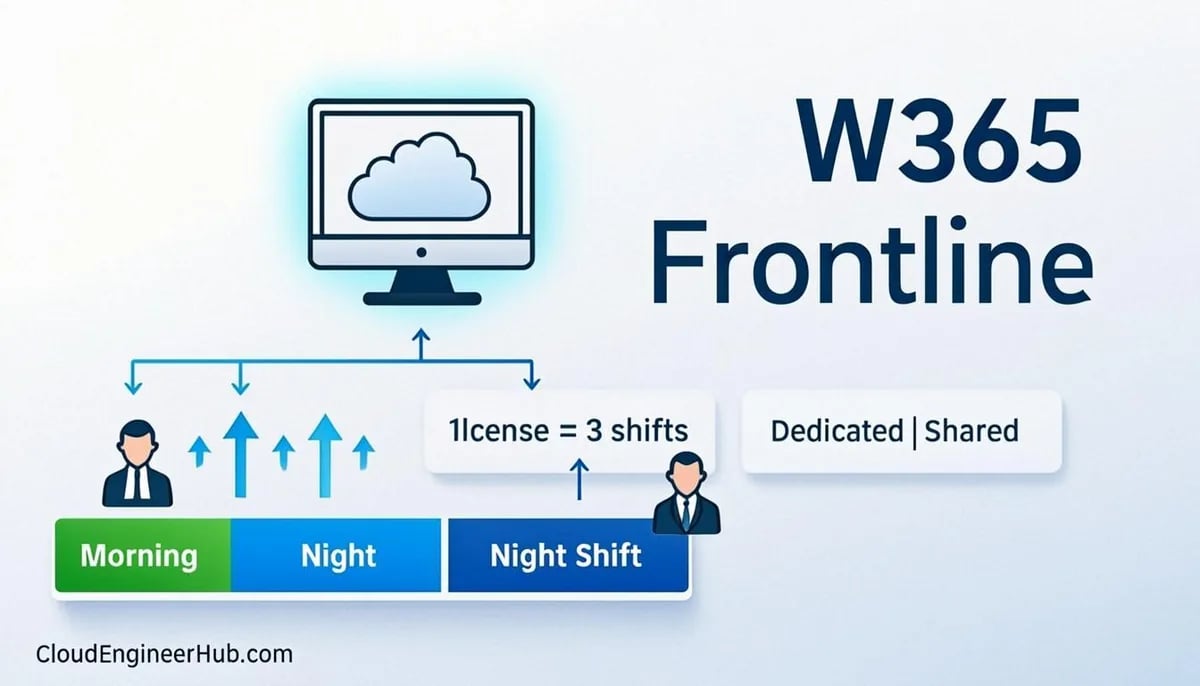
One per license by default. Frontline worker configurations allow shared-mode Cloud PCs where licenses rotate across shift users — that is a policy configuration, not extra licenses.
Do I still need Intune with Windows 365 Business?
Business manages Cloud PCs from windows365.microsoft.com without Intune. The moment you want full Intune policy, compliance, and app management, Enterprise is the SKU.
What happens when a license is removed?
The Cloud PC enters a grace period (7 days) and is then deprovisioned unless the license returns — user data goes with it, so treat license removal like a data deletion.
Gallery or custom image?
Gallery until something blocks you. Custom images age in place and must carry their own patch cycle; the gallery image is Microsoft's problem.
Conclusion
Windows 365 collapses VDI economics into a license and a policy — but the policy hides an architecture: join type, network, image, and settings that each fail differently. Decide join type once, monitor ANC health like production, keep images on a patch cycle, and let the Graph API turn fleet review into one line of PowerShell.
Planning an MD-102 or Windows 365 deployment next quarter? Validate your knowledge with the mock exams on /mock, keep the free troubleshooting tools on /tools bookmarked for ANC and provisioning failures, and save with the certification bundles on /store.


Comments
0No comments yet — be the first to share your thoughts.