Troubleshooting Windows Autopilot ESP Timeouts (Error 0x800705b4) · CloudEngineerHub
Autopilot9 min read49 views
Troubleshooting Windows Autopilot ESP Timeouts (Error 0x800705b4)
A field-tested playbook for Autopilot Enrollment Status Page timeouts: 0x800705b4 root causes, blocking-app triage, ESP profile tuning, log collection, and prevention.
C
CloudEngineerHub Team
Published: September 1, 2026· Last Updated: October 23, 2026·9 min read
Troubleshooting Windows Autopilot ESP Timeouts (Error 0x800705b4)
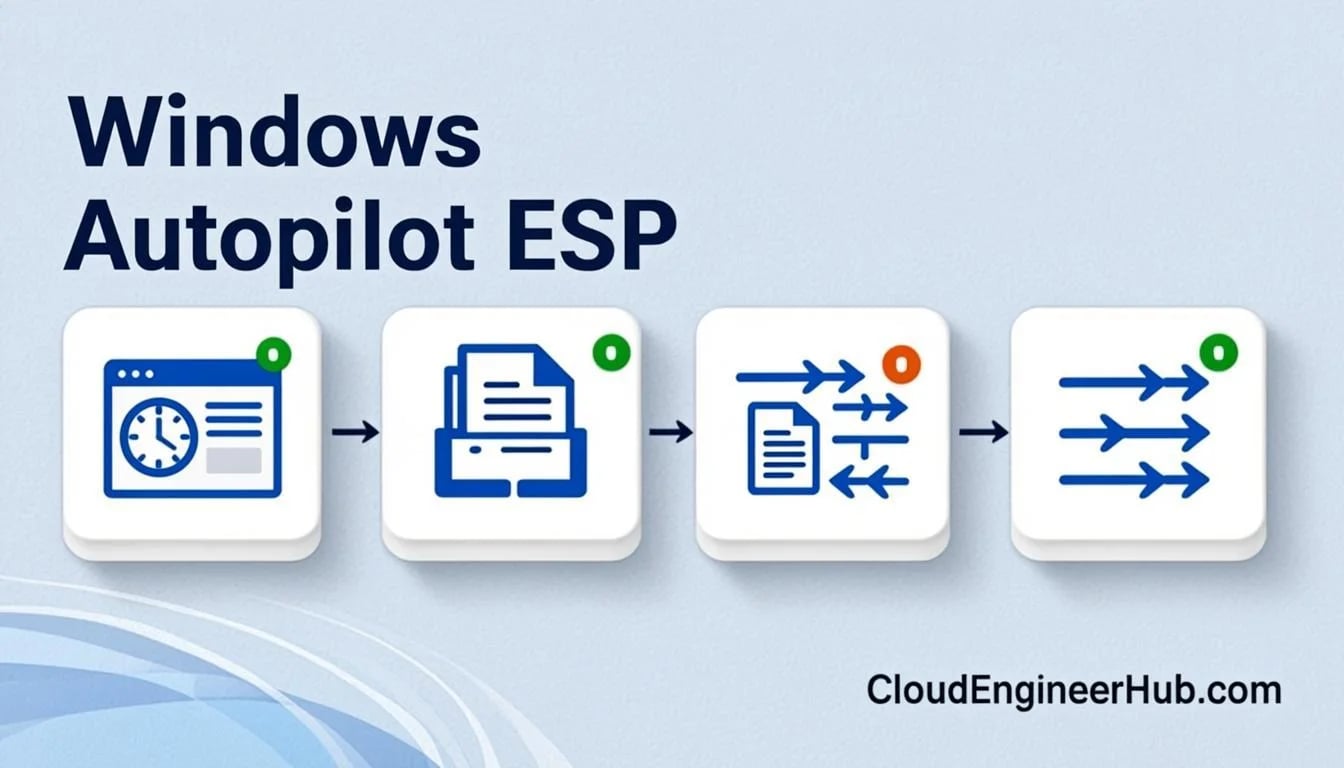
The Enrollment Status Page (ESP) is the screen users see during Windows Autopilot provisioning that tracks device setup, account setup, and app installation progress. When it stalls and finally throws 0x800705b4 — "We couldn't set up your device" — onboarding stops mid-flight, helpdesk tickets spike, and the device usually has to be re-provisioned from scratch. This is the production playbook: how the ESP phases actually work, where they break, and the fastest route from symptom to fix.
Visual Walkthrough
C
CloudEngineerHub Team
Author
The CloudEngineerHub editorial team — Microsoft endpoint management and cloud engineers writing hands-on guides on Intune, Azure, Entra ID, Autopilot, Defender and PowerShell. Every article is reviewed against current Microsoft documentation.
A repeatable triage path for the Enrollment Status Page before you reimage.
Decision TreeESP Stuck? Debug It Like an Engineer5/5
Decision gate
Where is ESP blocked?
Phase determines the log — never guess, MDMDiagnostics knows.
Device ESP blocked
1
Collect diagnostics
Shift+F10 → MDMDiagnosticsTool -area ESP; CAB holds the truth.
2
Read the blocking app
ESP log lists the exact blocking app or policy with status.
3
Check app failure
IME/AgentExecutor logs reveal exit codes and detection misses.
4
Fix and re-enroll
Correct the app/policy, then retry enrollment — device unchanged.
User ESP blocked
1
Reproduce with user
Sign-in context matters: user ESP runs after credential entry.
2
Inspect sidecar logs
DeviceManagement-Enterprise-Diagnostics-Admin and IntuneManagementExtension.
3
Find policy deadlock
A required user app failing detection is the classic hang.
4
Relax blocking set
Trim blocking apps to a viable minimum, redeploy, verify desktop.
ESP Stuck? Debug It Like an Engineer. Gate: Where is ESP blocked? — Device ESP blocked: Collect diagnostics — Device ESP blocked: Read the blocking app — Device ESP blocked: Check app failure — Device ESP blocked: Fix and re-enroll — User ESP blocked: Reproduce with user — User ESP blocked: Inspect sidecar logs — User ESP blocked: Find policy deadlock — User ESP blocked: Relax blocking set
Prerequisites
Windows 11 (or Windows 10 21H2+) Pro/Enterprise with TPM 2.0 and reliable internet during OOBE.
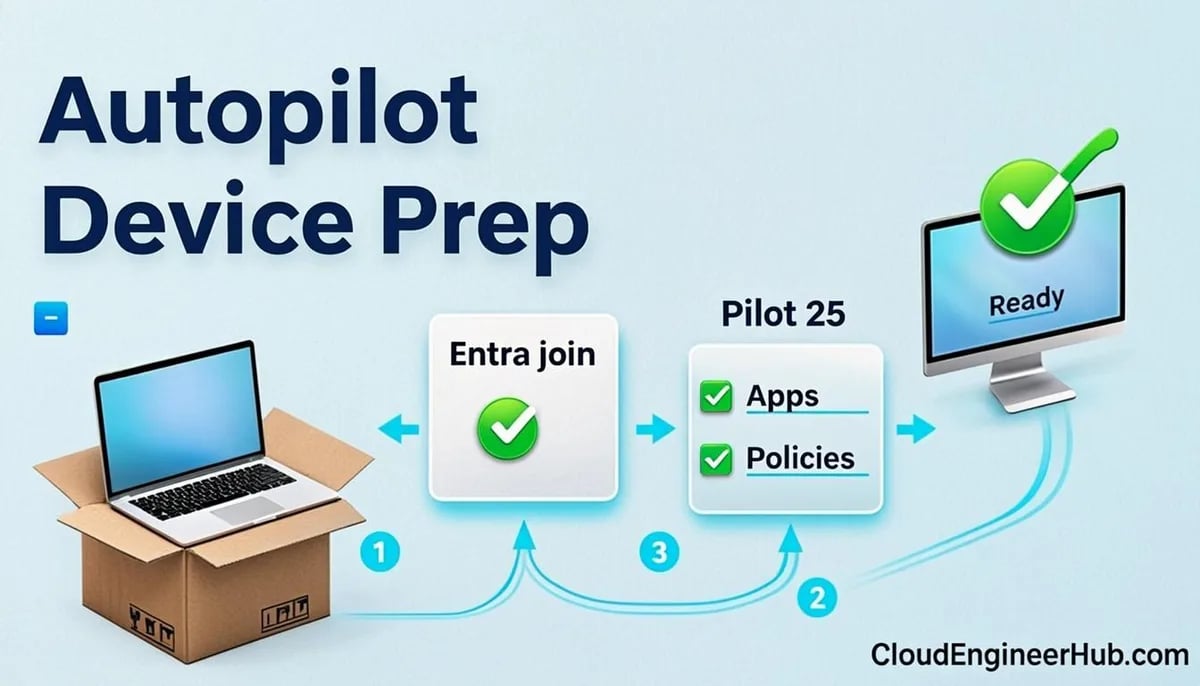
A valid Autopilot registration: hardware hash uploaded, or the device targeted by a Windows Autopilot device preparation profile.
An ESP profile assigned to the device or user group, with required apps scoped and tested on pilot hardware.
Physical or console access to the failing device for log collection, and the Intune Administrator (or read-only managed device) role for service-side reporting.
An Intune license assigned to the enrolling user — user-based enrollment silently fails without one.
How the ESP Actually Works
The ESP has two phases, and knowing which phase failed halves your troubleshooting time.
Device preparation runs before any user signs in. It tracks enrollment itself, security policies (certificates, encryption, firewall), and any required-for-device apps delivered by the Intune Management Extension (IME). Account setup starts after the user authenticates and tracks user-targeted policies plus user-required apps. Each phase polls status through the EnterpriseDesktopAppManagement and policy CSPs: every tracked app must report a terminal state (installed or failed) and every tracked policy must report success or error before the phase can complete.
A phase times out when one tracked item never reports terminal status — a Win32 app whose detection rule never fires, a policy that the device never receives, or a download that never finishes. The ESP default timeout is 60 minutes per phase (configurable roughly between 5 and 60), and when the clock expires you get 0x800705b4, whose underlying meaning is simply "an error timed out": the ESP gave up waiting on something. That is why 0x800705b4 is a symptom, not a diagnosis — the real cause is whatever the ESP was waiting on.
Step-by-Step Diagnostic Playbook
Identify the phase and the stuck item. The ESP names the current phase and usually shows the percentage and app or policy it is waiting on. Note both before touching anything.
Verify connectivity. Run Test-NetConnection login.microsoftonline.com -Port 443 and a check against *.manage.microsoft.com. Corporate proxies with SSL inspection and captive-portal Wi-Fi are chronic offenders.
Check the IME. The service must be running for any Win32 app to install. A dead or crash-looping IME guarantees a device-setup timeout when blocking apps are configured.
Test the failing app manually. Install it with the exact Intune install command on a test device, then run the detection rule by hand. Most ESP timeouts trace back to an app that installs fine but is never detected.
Collect diagnostics. Use the MDM diagnostics tool and the event logs (commands below), then review IntuneManagementExtension.log, AgentExecutor.log, and the DeviceManagement-Enterprise-Diagnostics provider events.
Fix at the source and re-provision. Repair the app, policy, or group; then re-run provisioning with an Autopilot Reset or re-enroll — do not ship the failed device.
Configuration Deep Dive: ESP Profiles and Timeout Tuning
ESP profiles live in intune.microsoft.com → Devices → Enrollment → Windows → Enrollment Status Page. The decisions that matter:
Show progress to users — keep it on; a silent screen generates support calls.
Timeout in minutes — the range is roughly 5–60. Extending it hides symptoms; it does not fix them. Set 60 for image-heavy builds, but treat a timeout as a defect to fix, not a knob to tune.
Show an error when setup takes longer than the specified number of minutes — enable in production so failures surface immediately instead of burning an hour of a new hire's day.
Block device use until these required apps are installed — you can track all required apps or only selected ones. This is the single highest-leverage setting: block only on fast, essential apps (security agents, VPN), and let heavyweight apps like Microsoft 365 install non-blocking in the background.
Allow users to reset the device if an error occurs — deliberate choice; resets are usually the right self-service recovery, but confirm your support model first.
Because one ESP profile applies to device setup and another to user setup, structure deliberately: a device-profile that blocks on 2–3 critical apps, and a user-profile that tracks user-targeted apps with the M365 suite explicitly excluded from blocking.
Real-World Enterprise Scenario
A 2,000-seat financial services rollout kept stalling: a quarter of new laptops hung at "Installing Company Portal and security agents" and timed out at 60 minutes. The IME logs showed the same pattern every time — the Microsoft Teams machine-wide installer completed, but its detection rule pointed at a registry key written under the 32-bit hive, while the ESP on 64-bit hardware looked elsewhere. The app was installed; detection never succeeded; the phase waited forever.
The fix took three changes: the detection rule was corrected to the actual installed path, Teams was moved to the account-setup phase with blocking disabled, and the device-setup block list was cut to the EDR agent and VPN client only. Median time-to-desktop dropped from over 40 minutes to about 12, and the 0x800705b4 tickets disappeared. The lesson generalizes: ESP timeouts are almost always detection or scope problems, never "the network is slow" — slow networks produce slow ESP, not failed ESP.
PowerShell Triage and Reporting
Run this on the failing device to separate network, IME, and policy issues in under two minutes:
PowerShell
1
2
3
4
5
6
7
8
9
10
11
12
13
# 1. Connectivity sanity checks (expect TcpTestSucceeded : True)
Test-NetConnection login.microsoftonline.com -Port443
Test-NetConnection manage.microsoft.com -Port443# 2. Recent MDM enrollment errors from the diagnostic event log
Get-WinEvent -LogName"Microsoft-Windows-DeviceManagement-Enterprise-Diagnostics-Provider/Operational" -MaxEvents100 |
Where-Object { $_.LevelDisplayName -eq'Error' } |
Select-Object TimeCreated, Id, Message -First10# Expected: TimeCreated, Id, and the failing operation for each error event# 3. IME health — must be Running for Win32 apps to install
Get-Service IntuneManagementExtension
# Expected: Status Running, Name IntuneManagementExtension
Collect a support bundle and read the service side of the story:
PowerShell
1
2
3
4
5
6
7
8
9
10
11
# One-shot Autopilot diagnostics bundle (run elevated on the device)
mdmdiagnosticstool -area"Autopilot;DeviceEnrollment;TPM" -zip C:\Temp\Autopilot-Diag.zip
# Expected: "Diagnostic file(s) written to C:\Temp\Autopilot-Diag.zip"# Service-side: latest Autopilot deployment events for the tenant
Connect-MgGraph -Scopes"DeviceManagementManagedDevices.Read.All"$events = Invoke-MgGraphRequest -Method GET -Uri'https://graph.microsoft.com/beta/deviceManagement/autopilotEvents'$events.value |
Select-Object -First10 deviceName, deploymentState, enrollmentState, windowsAutopilotDeploymentProfileDisplayName |
Format-Table -AutoSize# Expected: a table of devices with deploymentState success/failed/inProgress
Troubleshooting Matrix
Symptom
Likely cause
Fix
ESP stuck at "Identifying"
Autopilot profile not applied — hash not registered or device missed its Entra group
Verify registration and group membership; reboot and retry OOBE
Stuck at "Preparing your device for mobile management"
No line of sight to enrollment endpoints, or TPM not ready
Test-NetConnection the endpoints; check TPM state; remove SSL inspection
Hangs on one app percentage
App installs but detection never fires (wrong path/version/hive)
Run install + detection manually; fix the rule; republish
Timeout at 60 min, 0x800705b4
A tracked item never reached terminal state
Read IME logs for the last line; fix that item or stop blocking on it
Device setup OK, account setup fails
User license missing, or user-targeted blocking app broken
Assign the license; move heavy apps out of the block list
ESP skipped entirely
ESP profile not assigned to that user/device
Check assignments and precedence of multiple ESP profiles
Common Errors
0x800705b4 — the generic timeout: something tracked never completed. Always follow the logs to the underlying item; the code itself names no culprit.
0x80070002 (file not found) during app installation — Win32 content unavailable or the installer path in the package is wrong. Repackage and confirm the content lands on the device.
0x80180018 — MDM enrollment was refused; typically the device cap or an enrollment restriction is in play. Clean up stale device objects and review enrollment blockers.
0x801c000e — registration quota reached: the user or tenant hit its device-object limit. Retire or delete unused Entra device records.
Visual Walkthrough
Know exactly what blocks the desktop at each ESP phase and where it logs.
TimelineEnrollment Status Page — The Three Blocking Phases5/5
phase 1 · device
1
Device ESP: security
Security policies (BitLocker, Defender, firewall) are the first hard gate.
phase 1 · device
2
Device ESP: certs & network
Certificates and Wi-Fi/VPN profiles must land before the network is trusted.
phase 1 · device
3
Device ESP: device apps
Required device-context apps (Win32 via IME) install before sign-in.
Required user apps and policies — the last blocking gate before desktop.
Enrollment Status Page — The Three Blocking Phases. 1. Device ESP: security: Security policies (BitLocker, Defender, firewall) are the first hard gate. — 2. Device ESP: certs & network: Certificates and Wi-Fi/VPN profiles must land before the network is trusted. — 3. Device ESP: device apps: Required device-context apps (Win32 via IME) install before sign-in. — 4. User ESP: account setup: Entra sign-in, PRT issuance, user-context policies fetch. — 5. User ESP: user setup: Required user apps and policies — the last blocking gate before desktop.
Best Practices
Block only on 2–3 fast, critical apps during device setup; everything heavy installs non-blocking.
Validate every detection rule by hand on a real device before fleet day — it is the number one ESP killer.
Keep IME-based chains shallow: every dependency adds a download and a detection pass inside a phase with a hard clock.
Test on your actual hardware over your actual network — office Wi-Fi behaves nothing like a lab VLAN.
Re-provision with Autopilot Reset rather than reimaging; it re-runs provisioning in minutes.
Review the Autopilot deployment report after every wave and treat any non-success state as a defect.
Security Considerations
Never remove security policy tracking (certificates, encryption, firewall) from the block list to make ESP "pass" — the device would reach users unsecured.
The diagnostic bundle contains device and user identifiers; route it through your incident process, not email attachments.
"Allow users to reset device if an error occurs" is a self-service recovery feature — weigh it against your physical-security model for shared or kiosk hardware.
Keep pre-provisioning (technician phase) access restricted to designated staff; it installs content before a user ever signs in.
Verify that BitLocker tracking during device setup is intentional — it lengthens ESP time by design, and that is the correct trade-off.
FAQ
Can I just raise the ESP timeout to make errors go away?
No. The range tops out around 60 minutes, and a timeout means something is genuinely broken. Extend it only for justified heavy builds, and still fix the underlying item.
Why does the ESP hang on "Preparing your device for mobile management"?
The device cannot reach the enrollment endpoints, or TPM attestation is failing. Confirm connectivity first — especially proxies with SSL inspection — then check TPM state.
Do available (Company Portal) apps appear on the ESP?
No. Only required apps — and only those selected as blocking — are tracked. Available apps install on demand later.
Is the ESP shown for non-Autopilot enrollments too?
Yes. If an ESP profile targets the enrolling user or device, it appears during any Entra join + MDM enrollment, not just Autopilot.
What is the fastest recovery for a timed-out device?
Trigger an Autopilot Reset (or Wipe → re-provision), after fixing the blocking app or policy. Re-running the same broken state just produces the same timeout.
Conclusion
0x800705b4 is a timeout message in search of a diagnosis. The moment you stop treating the code as the problem and start tracing which tracked app or policy never finished, ESP failures become ordinary, boring, solvable defects: a detection rule, a group scope, a license, a proxy. Instrument with the diagnostics tool, read the IME logs, keep your block list lean, and Autopilot day-one provisioning becomes the fastest part of your onboarding instead of the loudest helpdesk category.



Comments
0No comments yet — be the first to share your thoughts.