Windows Autopilot Device Preparation: Complete Deployment Guide · CloudEngineerHub
Autopilot10 min read24 views
Windows Autopilot Device Preparation: Complete Deployment Guide
Zero-touch Windows 11 provisioning with Autopilot device preparation: prerequisites, profiles, tracked apps and policies, pilot validation, and troubleshooting.
A
Anuradha Kumari
Published: September 15, 2026· Last Updated: October 15, 2026·10 min read
Windows Autopilot Device Preparation: Complete Deployment Guide
Imaging a physical Windows fleet is one of the last workflows enterprise IT still runs largely by hand: build the reference image, keep drivers current, stage software, wipe, image, wait. Windows Autopilot device preparation replaces that workflow with a cloud-driven, zero-touch flow that is administered entirely from Microsoft Intune and executed by the device itself during the out-of-box experience (OOBE).
Visual Walkthrough
The 2024+ provisioning experience: no hash, one profile, live monitoring.
Interactive FlowAutopilot Device Preparation — The Fast Lane6/6
1
Create Entra device group
Static for pilots, dynamic (device.deviceOwnership) for scale — no group tags.
2
Build the prep profile
Language, OOBE behaviors, curated app list (~10 cap) and blocking policies.
3
Assign and deploy
One profile embeds everything — apps and policies travel together.
OOBE
4
Unbox and sign in
No hash capture, no CSV, no OEM lead time; region + Entra credential only.
5
Streamlined ESP
A single simplified ESP tracks exactly the profile-defined items.
6
Per-device monitoring
App and policy progress live in the same console section.
Autopilot Device Preparation — The Fast Lane. 1. Create Entra device group: Static for pilots, dynamic (device.deviceOwnership) for scale — no group tags. — 2. Build the prep profile: Language, OOBE behaviors, curated app list (~10 cap) and blocking policies. — 3. Assign and deploy: One profile embeds everything — apps and policies travel together. — 4. Unbox and sign in: No hash capture, no CSV, no OEM lead time; region + Entra credential only. — 5. Streamlined ESP: A single simplified ESP tracks exactly the profile-defined items. — 6. Per-device monitoring: App and policy progress live in the same console section.
A
Anuradha Kumari
Author
Endpoint management specialist focused on Microsoft Intune, Windows Autopilot and modern EUC. Writes practical deployment, compliance and troubleshooting guides for IT teams.
Windows Autopilot device preparation — introduced in 2023 as the new Autopilot experience and now the recommended path for user-driven, Microsoft Entra-joined Windows 11 deployments — strips classic Autopilot down to what actually matters. The device matches itself to a deployment profile, joins Entra ID, enrolls in Intune, installs a short tracked list of apps and configuration policies during OOBE, and lands the user on a working desktop. There is no Enrollment Status Page (ESP) to architect, no hybrid join seams, and dramatically fewer timing failures.
This guide covers a complete production rollout: prerequisites, how the flow works, profile design, pilot validation, monitoring, troubleshooting, and the operational lessons that separate successful programs from stalled ones.
Autopilot device preparation flow. Full text: New device
Hardware hash upload
Device group + profile
Network + Entra ID sign-in
Autopilot profile fetch
Intune enrollment (DEP)
ESP: policies & apps
Provisioning complete
Ready for the user
Before you touch a single profile, confirm every item below. Most failed device preparation rollouts fail on these fundamentals, not on Intune configuration.
Windows 11 22H2 with the 2023-09 cumulative update (KB5030310) or later, or Windows 11 23H2 or later. Device preparation does not support Windows 10.
Physical devices with TPM 2.0. Virtual machines are not supported for device preparation — validate on real hardware.
Microsoft Entra ID P1 licensing (a standing Autopilot prerequisite) and an Intune license for every enrolling user.
An Intune role that includes the Windows Autopilot device preparation permission; Intune Administrators hold it by default.
Win32 apps packaged as .intunewin files and Microsoft Store apps already published in Intune, ready to be tracked during OOBE.
Devices imported into the Autopilot service via hardware hash, with reliable internet access at the provisioning site.
A dynamic Microsoft Entra device group to connect imported devices to the deployment profile.
How It Works
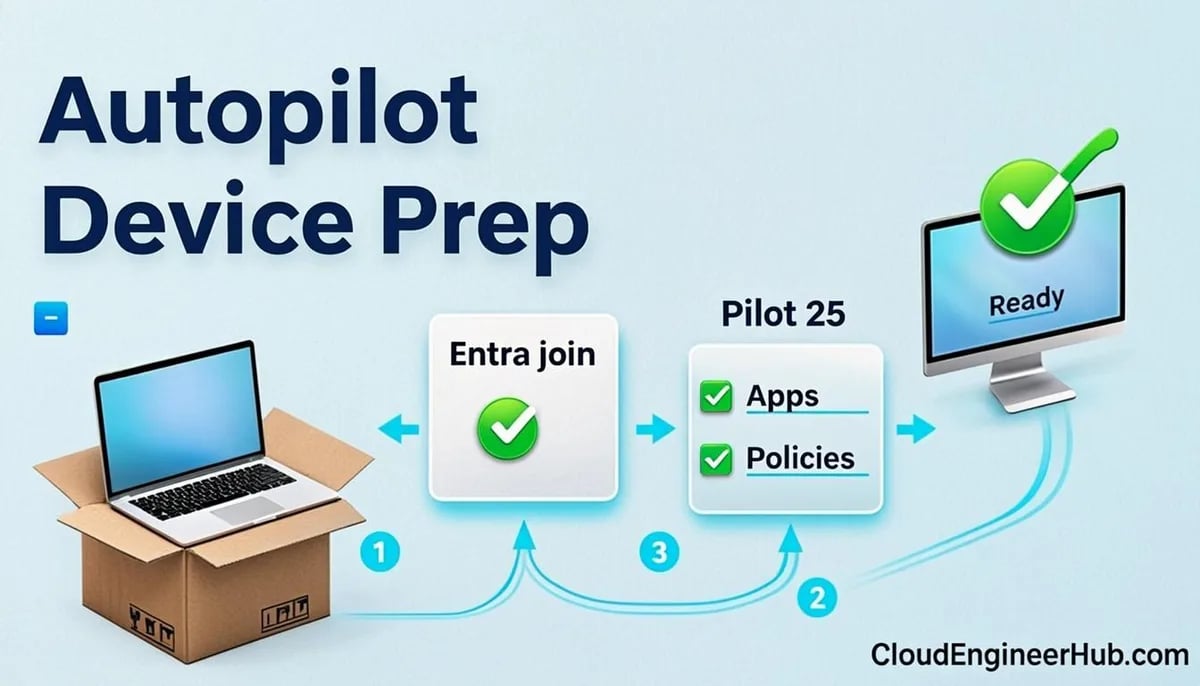
Device preparation binds four things together in a single deployment profile: a device group, a set of configuration policies, a set of apps, and the account type the end user receives. When a device boots into OOBE, it contacts the Autopilot deployment service, matches its hardware hash to an imported device, retrieves the assigned profile, joins Microsoft Entra ID, enrolls in Intune, and is automatically placed into the targeted dynamic group. Intune then delivers the profile's apps and policies, and the device shows a dedicated device preparation status page that tracks each item individually — no ESP involved.
What device preparation changes versus classic Autopilot
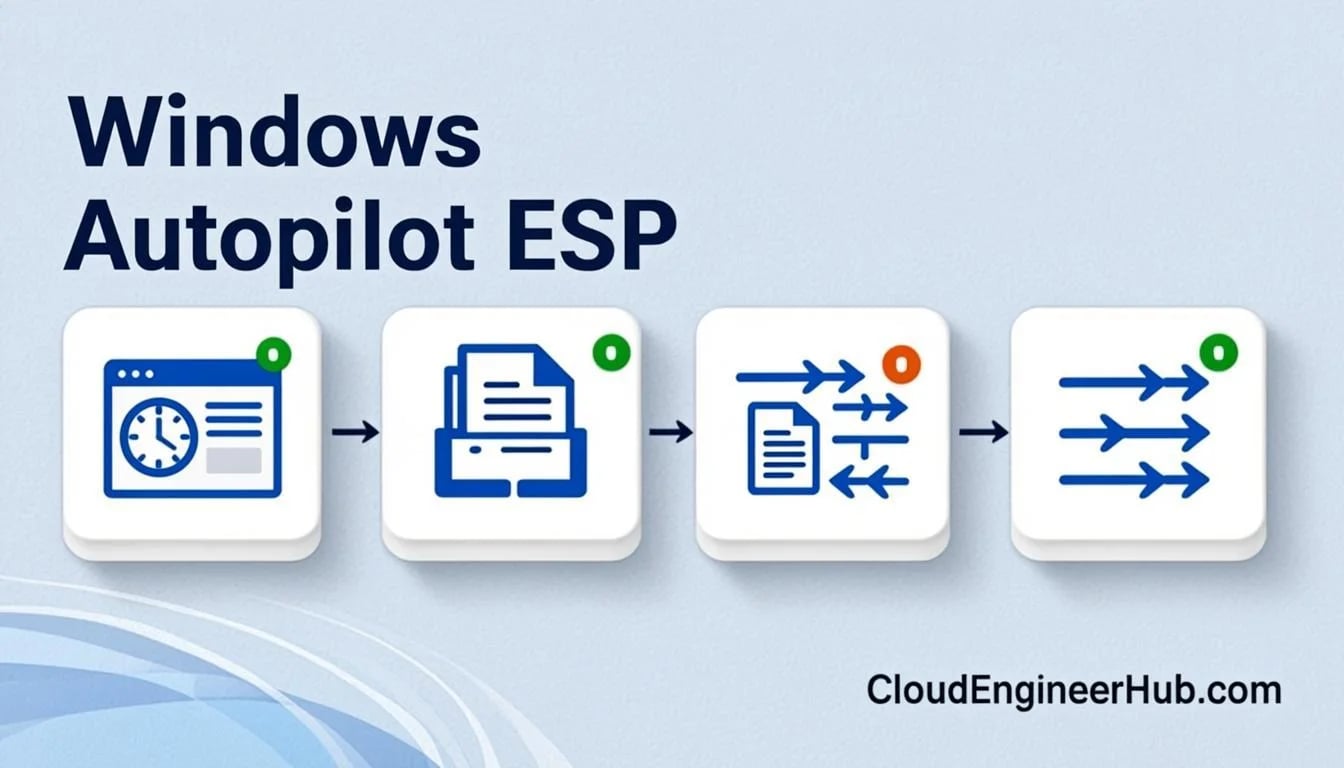
No Enrollment Status Page. The status page is purpose-built and tracks only the apps and policies selected in the profile.
Entra join only. Hybrid Entra join is not supported. Keep classic Autopilot profiles for hybrid scenarios.
User-driven only. Self-deploying mode and pre-provisioning (White Glove) are not part of device preparation.
Fewer, safer choices. Up to 10 apps (Win32 or Microsoft Store) and up to 10 configuration policies can be tracked per profile, which deliberately forces a lean OOBE.
Independent of ESP configuration. Classic profiles continue to use ESP exactly as configured; device preparation devices ignore it.
The result is a flow with far fewer failure modes than the ESP-based experience, at the cost of some flexibility for exotic scenarios.
Step-by-Step Implementation
1. Import devices into Autopilot
In intune.microsoft.com, go to Devices > Enrollment > Windows Autopilot > Devices and import the hardware hash CSV containing serial number, Windows product ID, hardware hash, and an optional group tag. Field technicians can capture hashes with the widely used community script Get-WindowsAutoPilotInfo, and OEMs or resellers can register devices on your behalf. Give every import a meaningful group tag — you will use it for group membership in the next step.
2. Create the dynamic device group
In entra.microsoft.com, create a dynamic device group whose rule matches the group tag you assigned at import:
The Group Tag entered during import is stored as the OrderID device physical ID, so the rule must match exactly. In the device preparation profile flow, Intune can create this group for you, which reduces rule typos — a classic cause of devices never receiving a profile.
3. Create the deployment profile
Back in Intune, under Devices > Enrollment > Windows Autopilot, create a Windows Autopilot device preparation deployment profile. Select the deployment group created above, choose the configuration policies and apps to track, and set the user account type. Choose Standard user for virtually all knowledge-worker scenarios. The apps you select must be Win32 apps or Microsoft Store apps already present in Intune.
4. Validate with a pilot device
Run one device end to end before scaling: confirm the profile is assigned, watch the device preparation page track each app and policy, verify the user can sign in, and check that only the intended OOBE screens appear. Time the full flow — most healthy Entra-joined pilots complete in 20 to 40 minutes on business broadband.
5. Roll out and monitor
Scale in rings by shipping batches of pre-registered devices. Monitor under Devices > Enrollment > Windows Autopilot for profile assignment and deployment status, and in Intune under Devices for enrollment and check-in health. Watch the first week closely: most systemic issues (group rule typos, app packaging problems, proxy interference) surface within the first ten devices.
Configuration Deep Dive
Group tag taxonomy. Treat group tags like code: define a standard (for example, region-model-fiscal-year), publish it, and reject imports that break it. Every downstream group, profile, and app assignment inherits this decision.
App selection discipline. Track only what must exist before the user reaches the desktop: VPN client, core line-of-business app, security agent. Everything else should be deployed post-OOBE via required assignments so OOBE stays fast.
Policy selection. Only configuration policies are tracked. Compliance policies, security baselines, and app protection policies apply through normal Intune assignment after enrollment — do not expect them on the device preparation page.
User account type. Standard user unless an application has a documented, unavoidable requirement for admin rights. Elevating OOBE users creates a security debt you will pay for years.
Scope tags and RBAC. Apply scope tags to profiles and devices so regional admins can only see their own populations.
Real-World Enterprise Scenario
A 2,200-seat financial services firm replaced a four-hour imaging process with device preparation. Procurement registered devices via the OEM, so hardware never touched IT: it shipped from the distributor directly to 14 branch offices. The profile tracked four items — the VPN client, the finance line-of-business Win32 app, the Defender onboarding configuration policy, and the BitLocker drive encryption policy. Everything else (roughly 25 applications and 40 policies) deployed in the first hour after enrollment through standard Intune assignments, which users never notice because it happens in the background while they work.
The pilot surfaced one systemic issue: two branch offices used a TLS-inspecting proxy that broke Autopilot registration. Bypassing inspection for the Autopilot and Intune endpoints fixed both sites permanently. Total touch time per device dropped from roughly 55 minutes of technician time to under 5, and new-hire day-one failures fell to near zero because devices arrived already enrolled and encrypted.
Visual Walkthrough
Know exactly what blocks the desktop at each ESP phase and where it logs.
TimelineEnrollment Status Page — The Three Blocking Phases5/5
phase 1 · device
1
Device ESP: security
Security policies (BitLocker, Defender, firewall) are the first hard gate.
phase 1 · device
2
Device ESP: certs & network
Certificates and Wi-Fi/VPN profiles must land before the network is trusted.
phase 1 · device
3
Device ESP: device apps
Required device-context apps (Win32 via IME) install before sign-in.
Required user apps and policies — the last blocking gate before desktop.
Enrollment Status Page — The Three Blocking Phases. 1. Device ESP: security: Security policies (BitLocker, Defender, firewall) are the first hard gate. — 2. Device ESP: certs & network: Certificates and Wi-Fi/VPN profiles must land before the network is trusted. — 3. Device ESP: device apps: Required device-context apps (Win32 via IME) install before sign-in. — 4. User ESP: account setup: Entra sign-in, PRT issuance, user-context policies fetch. — 5. User ESP: user setup: Required user apps and policies — the last blocking gate before desktop.
PowerShell for Autopilot Device Preparation
PowerShell
1
2
3
4
5
6
7
8
9
10
11
12
13
14
15
16
# Connect to Microsoft Graph with least-privilege application scopes
Connect-MgGraph -Scopes"DeviceManagementServiceConfig.Read.All","DeviceManagementManagedDevices.Read.All"# List devices imported into the Autopilot service (device preparation and classic)$response = Invoke-MgGraphRequest -Method GET -Uri"https://graph.microsoft.com/beta/deviceManagement/importedWindowsAutopilotDeviceIdentities"# Surface the properties that matter operationally$response.value |
Select-Object serialNumber, groupTag, deviceImportStatus, deviceRegistrationId |
Format-Table -AutoSize# Expected output (example):# serialNumber groupTag deviceImportStatus deviceRegistrationId# ------------ ---------- ------------------ --------------------# 5CG1234AB9 FIN-F2K25 DeviceImported 5CG1234AB9# 5CG9876XY4 FIN-F2K25 DeviceImported 5CG9876XY4
PowerShell
1
2
3
4
5
6
7
8
9
10
11
12
13
# Find the enrolled, registered Autopilot device for a given serial number$serial = "5CG1234AB9"$devices = Invoke-MgGraphRequest -Method GET -Uri"https://graph.microsoft.com/beta/deviceManagement/managedDevices?`$filter=serialNumber eq `"$serial`""$devices.value |
Select-Object deviceName, userPrincipalName, azureADDeviceId, complianceState |
Format-List
# Expected output (example):# deviceName : LT-FIN-0231# userPrincipalName : a.moreau@contoso.com# azureADDeviceId 9d3b2f6a-1c44-4d2e-8a7b-52f0d3f1a9c2# complianceState compliant
Troubleshooting
Symptom
Likely cause
Fix
Device boots to local account setup; no Autopilot flow
Hardware hash not imported or device not matched
Re-import the hash; confirm profile assignment status is Assigned for the device
Device joins Entra but receives no apps or policies
Dynamic group rule does not match the group tag
Verify the OrderID rule string against the import CSV, character for character
Apps install but never show as complete on the status page
App type outside the supported set or profile app limit reached
Package as Win32 or Store app; keep the tracked set within profile limits
Registration hangs at the network screen
Proxy or firewall blocking Autopilot/Intune endpoints
Bypass TLS inspection for login.microsoftonline.com and *.manage.microsoft.com
Failure only in lab VMs
Virtual machines unsupported
Validate on physical hardware with TPM 2.0
For deeper Autopilot diagnostics, see the ESP timeout runbook linked in Related Articles — most of its log-capture techniques apply even though device preparation does not use the ESP.
Common Errors
"The hardware hash is invalid" during import — the hash was truncated or altered in a spreadsheet. Recapture with the diagnostic tool and re-import.
"Device already registered" on import — the hash exists under another tenant. Work with the OEM, reseller, or previous owner to deregister it before enrolling in your tenant.
"This user is not authorized to enroll" — the enrolling user is blocked by an Intune enrollment restriction or lacks an Intune license. Adjust the restriction or the licensing assignment.
Profile shows "not assigned" days after import — the dynamic group has not evaluated or the rule is wrong. Check group membership in Entra and re-run evaluation.
Best Practices
Standardize group tags before your first import; retrofitting taxonomy across hundreds of devices is painful.
Keep the tracked OOBE list lean: the profile limits exist to protect your first-boot time.
Deploy the long tail of software after enrollment via required assignments, not during OOBE.
Assign the Standard user account type by default and audit any exceptions annually.
Pilot every profile change with a dedicated test group tag before touching production batches.
Use device preparation for Entra-joined fleets and reserve classic Autopilot profiles for hybrid or pre-provisioning scenarios — do not blend them casually.
Document your expected OOBE flow (region, network, sign-in, status page) so support staff can recognize a healthy boot.
Security Considerations
Device preparation enforces Entra join, which means Conditional Access, device compliance, and Defender for Endpoint signals apply from the first sign-in — verify your baseline CA policies include the enrolled device state. Standard user accounts keep the endpoint trustworthy; resist business pressure to grant admin rights during provisioning. Because devices register to Autopilot before enrollment, protect the Autopilot service itself: restrict who can import devices, monitor for unexpected registrations, and use the tenant-level Autopilot deployment settings (such as MDM user scope in entra.microsoft.com) to prevent devices from enrolling into the wrong tenant. Finally, confirm BitLocker and Defender onboarding policies are among the tracked items so devices are encrypted before the user touches them.
FAQ
Does device preparation replace classic Autopilot?
For user-driven, Entra-joined Windows 11 fleets, effectively yes — it is simpler and more reliable. Classic profiles remain relevant for hybrid join, self-deploying mode, and pre-provisioning.
Can I use it with Hybrid Entra join?
No. Device preparation supports Entra join only. Hybrid organizations should keep classic Autopilot profiles for domain-joined scenarios.
How many apps and policies can a profile track?
Up to 10 apps (Win32 or Microsoft Store) and up to 10 configuration policies. Additional apps still deploy after enrollment via standard assignments.
What about pre-provisioning (White Glove)?
Pre-provisioning is not part of device preparation. Use the classic pre-provisioning experience for bench-staging scenarios.
Do I still need to configure the ESP?
Not for device preparation devices — they use their own status page. ESP configuration continues to govern classic Autopilot profiles.
Conclusion
Windows Autopilot device preparation is the most important simplification to Windows provisioning since Autopilot itself: fewer moving parts, a purpose-built status page, and no ESP timing traps. Its constraints — Entra join, user-driven, physical hardware — map cleanly onto where most enterprises are already heading. Import devices with disciplined group tags, build lean profiles, validate with a pilot, and scale in rings. The endpoint team that masters this flow retires its imaging lab.



Comments
0No comments yet — be the first to share your thoughts.