Windows 365 Cloud PC Enterprise Deployment Guide · CloudEngineerHub
Windows 36513 min read4 views
Windows 365 Cloud PC Enterprise Deployment Guide
Plan an enterprise Windows 365 deployment: persona sizing, provisioning policy and network choices, license pacing, restore points, and throttled waves.
C
CloudEngineerHub Team
Published: September 20, 2026· Last Updated: September 28, 2026·13 min read
Windows 365 promises a deceptively simple proposition: assign a license, a Cloud PC appears, the user signs in. The simplicity is real, but it hides every deployment decision that determines whether the service feels like a fast, personal desktop or a shared, sluggish VM. Sizing, networking, image strategy, restore points, and rollout pacing are the five levers, and they interact more than the admin center suggests.
Visual Walkthrough
The provisioning chain that turns a license into a working Cloud PC.
Interactive FlowWindows 365 — License to First Sign-In6/6
1
License assigned
Windows 365 SKU entitles the user to one Cloud PC.
policy
2
Provisioning policy matches
Image + type (Enterprise) + region resolved by policy.
provision
3
On-behalf-of provisioning
Service provisions the Cloud PC without user action.
policies
4
Intune policies apply
Configuration + compliance ride the MDM channel in.
connect
5
User connects
Windows 365 app / web / gateway streams the desktop.
6
Lifecycle managed
Resize, restore, troubleshoot, reprovision on demand.
Windows 365 — License to First Sign-In. 1. License assigned: Windows 365 SKU entitles the user to one Cloud PC. — 2. Provisioning policy matches: Image + type (Enterprise) + region resolved by policy. — 3. On-behalf-of provisioning: Service provisions the Cloud PC without user action. — 4. Intune policies apply: Configuration + compliance ride the MDM channel in. — 5. User connects: Windows 365 app / web / gateway streams the desktop. — 6. Lifecycle managed: Resize, restore, troubleshoot, reprovision on demand.
C
CloudEngineerHub Team
Author
The CloudEngineerHub editorial team — Microsoft endpoint management and cloud engineers writing hands-on guides on Intune, Azure, Entra ID, Autopilot, Defender and PowerShell. Every article is reviewed against current Microsoft documentation.
This guide walks an enterprise deployment end to end: a sizing matrix by persona, provisioning policy design with Microsoft-hosted versus Azure vNet networking, license pacing, user settings and restore behavior, image management, cost governance, and how to run provisioning in waves that do not trip service throttling.
Why This Matters
A Cloud PC fleet is a recurring monthly cost per user plus a design commitment you will live with for years. Unlike a VM you own, you do not tune the hypervisor; you tune policy. The deployments that disappoint share the same fingerprints: one size fits nobody, an image stuffed with applications that belonged in Intune, subnets that filled up mid-wave, and restore points configured after the first "my desktop is broken" incident. Fixing those after production means reprovisioning, and reprovisioning resets the Cloud PC. Design first, then wave.
Sizing by Persona
Start from what people actually do, not from job titles. The common Windows 365 enterprise sizes map to personas like this:
Size (vCPU / RAM / storage)
Persona
Typical workloads
2 vCPU / 4 GB / 64 GB
Task or frontline (shared) users
Kiosk tasks, front desk, shift-based shared Cloud PCs
Many Office apps plus browser tabs, line-of-business apps, light local data processing
8 vCPU / 32 GB / 512 GB
Developers, designers, analysts
IDEs, local builds, CAD-light work, large datasets
Three sizing rules from the field. First, RAM pressure shows up before CPU pressure in office workloads; Teams plus a browser is memory-hungry, so when in doubt go up a RAM tier rather than a CPU tier. Second, storage is the tier nobody upgrades happily, because changing size later reprovisions the machine; choose storage with headroom. Third, exact available sizes depend on your Windows 365 plan (Enterprise or Business, Frontline for shared scenarios) and region, so validate the catalog before you publish personas internally.
Provisioning Policy and Network Choices
A provisioning policy answers four questions: where does the Cloud PC live, how does it join, what image does it boot, and who is the local admin. You build it in the Microsoft Intune admin center under Devices → Windows 365 (Cloud PC) → Provisioning policies.
Network: The Microsoft-hosted network option is the default and the right choice for most Entra-join deployments; Microsoft operates the vNet and there is nothing for you to size. Choose an Azure vNet only when you need hybrid join with a Windows Server AD domain, line-of-sight to domain controllers, or network-adjacent on-premises resources. Then subnet math becomes your problem: plan one IP address per Cloud PC plus the addresses Azure reserves per subnet, and add headroom for the next two waves. A subnet that fills mid-rollout is a stop-the-line event.
Join type: Microsoft Entra join works with the Microsoft-hosted network and is the clean path for cloud-native identity. Hybrid join requires the Azure vNet and reachable domain controllers, and inherits every hybrid fragility you already know.
Image: Start with the Microsoft-provided gallery image that includes Microsoft 365 apps. Move to a custom image only when you have a real baseline to bake (language packs, agents, and a small set of universal apps). Everything else belongs in Intune application deployment that runs after provisioning.
License Pacing
Every assigned license provisions a Cloud PC of the licensed size, and licenses are a committed monthly cost whether or not the machine is used. Pace them deliberately:
Buy and assign licenses in waves that match your rollout rings, not in a single enterprise-wide tranche.
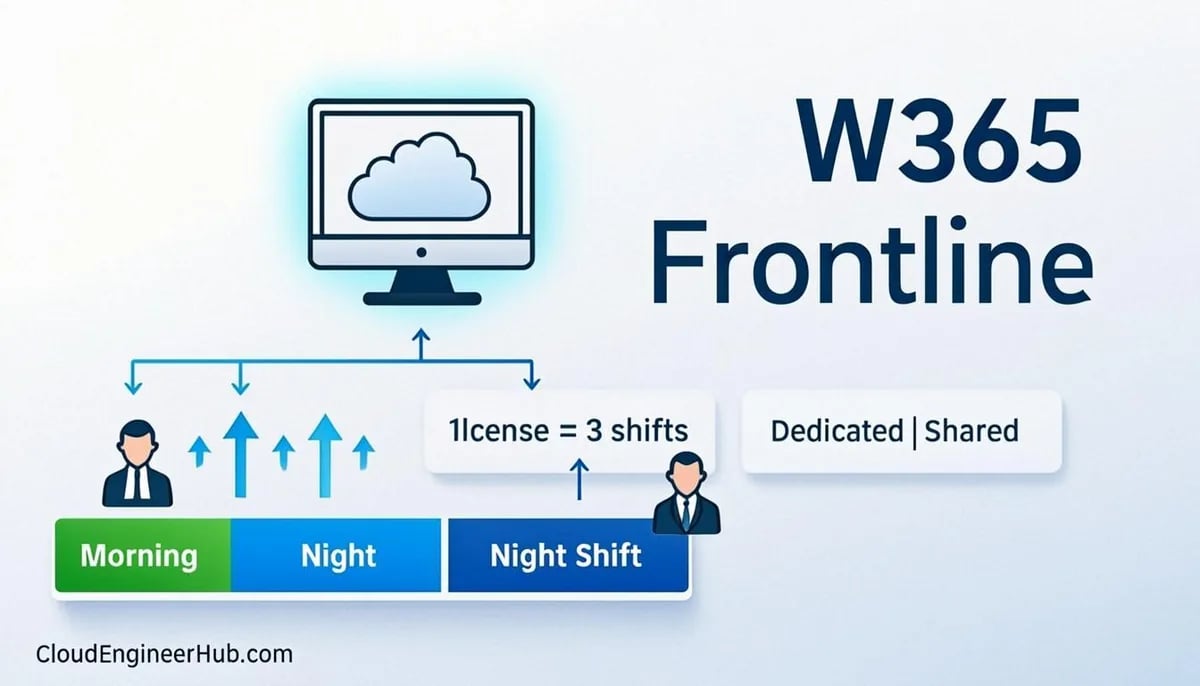
Frontline licenses are built for shared, non-always-on scenarios; do not assign them to users who expect a persistent desktop, and do not assign Enterprise licenses to shift workers who will not consume one.
Use the Cloud PC utilization report in Intune (Devices → Windows 365 (Cloud PC) → Cloud PC utilization) to find licenses that provisioned machines nobody logs into; reclaim them into the next wave.
Watch grace behavior at the edges: when a license assignment ends, the Cloud PC does not vanish instantly, but the eventual deprovision window is short enough that you need a documented process for leavers and role changes.
User Settings and Restore Points
Configure user settings policy under Devices → Windows 365 (Cloud PC) → User settings before the first wave, because restore points only help if they existed before the incident. Two decisions matter: restore point frequency (choose a value in hours that balances service load against data-loss exposure) and how many restore points Microsoft retains for each Cloud PC. Default retention is conservative; for finance and engineering personas, raise both frequency and retention.
Also decide local administrator rights here or in the provisioning policy. Standard users without local admin is the secure default; grant admin exceptions via a settings policy scoped to the specific group, and revisit the list quarterly. End users trigger a restore themselves from the Windows 365 web portal or the Windows App, so document the self-service path in your support comms; the best restore story is the one where the user never opens a ticket.
Image Management
Treat the Cloud PC image like a golden image pipeline with two hard rules. First, keep it thin: OS, current servicing, language packs, and agents only. Applications deployed by Intune at first sign-in keep the image stable across quarters and avoid the reprovision storm that follows every image update. Second, automate capture: build a reference Cloud PC, generalize it, and register the custom image through the Windows 365 image workflow, so the pipeline is repeatable. When you update the image, existing Cloud PCs keep running on the old one; only new provisions and reprovisions pick it up, which is exactly the behavior you want to exploit in waves.
Visual Walkthrough
Every supported lifecycle action, in the right order.
Lifecycle LoopCloud PC Lifecycle — Manage Without Ghosts6/6
1
Provision
Policy + license → Cloud PC object created.
resize
2
Resize
SKU change re-provisions size, keeps user data.
restore
3
Restore point
Point-in-time restore rescues bad updates/config.
diagnose
4
Troubleshoot mode
Admin locks the device for deep diagnostics.
reprovision
5
Reprovision
Wipes and rebuilds from policy — data acknowledged first.
6
Deprovision (grace)
Deletion honors the grace window — export data before you confirm.
Continuous cycle
Cloud PC Lifecycle — Manage Without Ghosts. 1. Provision: Policy + license → Cloud PC object created. — 2. Resize: SKU change re-provisions size, keeps user data. — 3. Restore point: Point-in-time restore rescues bad updates/config. — 4. Troubleshoot mode: Admin locks the device for deep diagnostics. — 5. Reprovision: Wipes and rebuilds from policy — data acknowledged first. — 6. Deprovision (grace): Deletion honors the grace window — export data before you confirm.
Cost Governance and Throttling Waves
Cost control for Windows 365 is rightsizing plus utilization hygiene, not SKU tricks. Run the utilization report monthly, rightsize chronically idle 4/16 machines down a tier, and be honest about the reversal: downsizing reprovisions the Cloud PC, so schedule it with the user like any other maintenance. Track the two silent costs: storage tiers attached to oversized machines, and licenses parked on departed users until someone reconciles them.
Provision in waves, not monoliths. The service throttles concurrent provisioning, and a thousand simultaneous assignments produce staggered, unexplained failures instead of clean batch behavior. A few hundred per wave, scheduled with the owning business unit, gives you predictable provisioning, real capacity feedback, and a support model that scales. Pilot with IT first, verify the full path (license → provision → first sign-in → Intune apps land), then proceed ring by ring.
Best Practices
Size by observed persona, upgrade RAM before vCPU, and pick storage with two years of headroom.
Default to Microsoft-hosted networking with Entra join; take the Azure vNet only with a documented reason and sized subnets.
Configure user settings and restore points before wave one, not after the first data-loss incident.
Keep the image thin and push applications through Intune; bake only what every user needs at boot.
Assign licenses per wave and reconcile utilization monthly.
Batch provisioning into a few hundred per wave and schedule around business calendars.
Common Pitfalls
Publishing one size for everyone, then discovering developers and task workers both suffer.
Selecting an Azure vNet with a subnet that lacks IP headroom; provisioning fails mid-wave with network errors.
Baking heavy applications into the image, making every app update a reprovision event.
Assigning Frontline licenses to users who need persistent, always-on Cloud PCs.
Skipping user settings configuration, so restore points never existed when a user needed one.
Triggering enterprise-wide provisioning at once and misreading throttling errors as license or policy failures.
Do I need an Azure vNet for Windows 365?
No. The Microsoft-hosted network option requires no Azure networking from you and is the right default for Microsoft Entra join deployments. You only need an Azure vNet for hybrid join with Windows Server AD or network-adjacent on-premises resources, and then subnet IP headroom becomes your responsibility.
What happens to a Cloud PC when the license is removed or expires?
The Cloud PC does not stop at the license end date immediately; it runs for a grace period before deprovisioning, and data retention after deprovisioning is limited. Treat both windows as short, verify current terms for your plan, and build leaver processing that removes licenses deliberately rather than discovering data-loss deadlines afterward.
Can users connect from a Mac, iPad, or browser?
Yes. The Windows App and the Windows 365 web portal run Cloud PCs on macOS, iOS/iPadOS, Android, and any modern browser. Local admin rights, peripheral behavior, and multimedia redirection vary by client platform, so test the persona-critical peripherals (printers, headsets, smartcards) on the client mix your users actually have.


Comments
0No comments yet — be the first to share your thoughts.