Entra ID Dynamic Device Groups: Query Rules Masterclass · CloudEngineerHub
Entra ID10 min read5 views
Entra ID Dynamic Device Groups: Query Rules Masterclass
Master Microsoft Entra dynamic device groups for Intune: rule syntax, Autopilot group tags, MDM and trust-type properties, latency realities, validation, and PowerShell automation.
C
CloudEngineerHub Team
Published: August 20, 2026· Last Updated: September 24, 2026·10 min read
Entra ID Dynamic Device Groups: Query Rules Masterclass
Every Intune deployment lives or dies on targeting. Static groups rot the moment a new device ships; dynamic device groups evaluate a query against every device object in Microsoft Entra ID and maintain membership automatically — enroll a laptop, and within one processing cycle it lands in the right rings, compliance scopes, and security baselines. This masterclass covers the rule syntax, the device properties that actually matter, the latency truths nobody puts in slide decks, and the PowerShell to automate group lifecycle.
Visual Walkthrough
Why a device joined a group at 09:14 and got the policy at 09:47.
C
CloudEngineerHub Team
Author
The CloudEngineerHub editorial team — Microsoft endpoint management and cloud engineers writing hands-on guides on Intune, Azure, Entra ID, Autopilot, Defender and PowerShell. Every article is reviewed against current Microsoft documentation.
Enrollment, attribute edit or compliance flip triggers eval.
evaluate
3
Background evaluation
Entra processes membership asynchronously — latency is normal.
update
4
Membership updated
Object added/removed; the change is visible in the group.
5
Targeting follows
Policies targeting the group now reach the new member.
Dynamic Groups — Rule to Membership Pipeline. 1. Rule authored: Property-based rule string (device.deviceOwnership -eq …). — 2. Object property change: Enrollment, attribute edit or compliance flip triggers eval. — 3. Background evaluation: Entra processes membership asynchronously — latency is normal. — 4. Membership updated: Object added/removed; the change is visible in the group. — 5. Targeting follows: Policies targeting the group now reach the new member.
Prerequisites
Microsoft Entra ID P1 licensing for every user or device that belongs to a dynamic group (dynamic membership is a P1 feature).
Devices present as objects in Entra ID — Microsoft Entra joined, Microsoft Entra registered, or hybrid joined.
Intune Administrator or Groups Administrator role to create groups and assign policies.
A naming convention for groups before you create the first one; retrofitting naming across 60 groups is a week you will not enjoy.
Access to entra.microsoft.com for the groups blade and to intune.microsoft.com for assignment validation.
How It Works
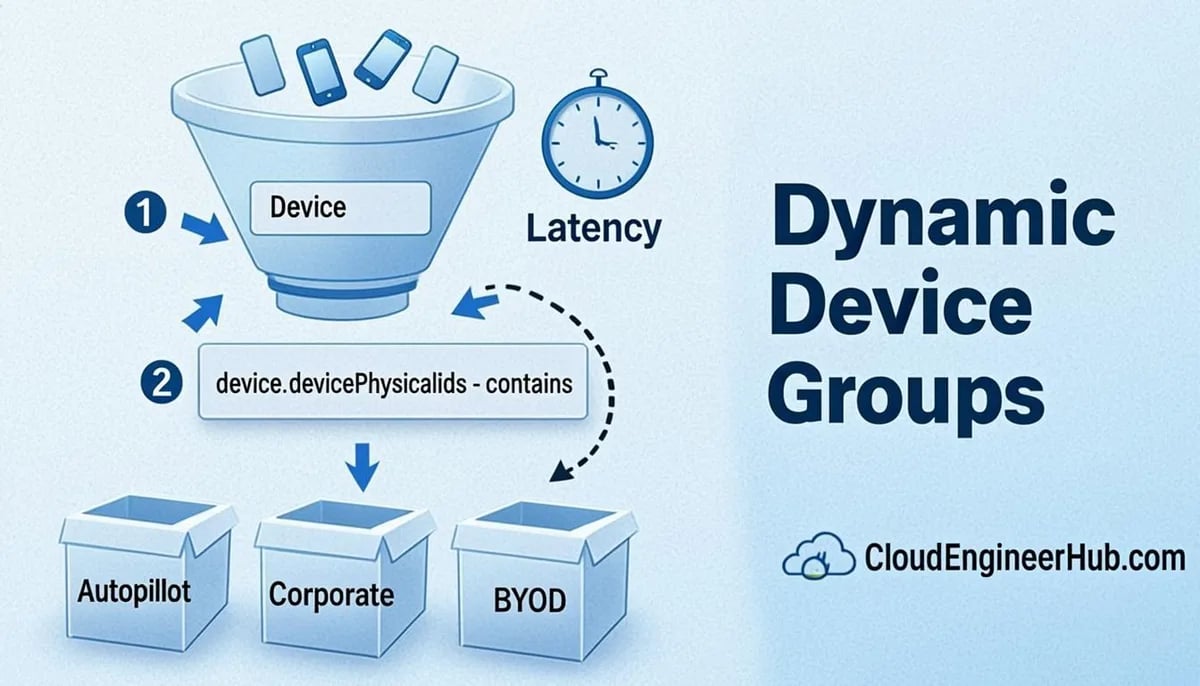
A dynamic group carries a membership rule — a single query evaluated against device objects. When a device is created, changed, or deleted in Entra ID, the rule engine re-evaluates membership asynchronously. Intune then treats the group like any other assignment target.
Rules use property-operator-value syntax over a defined set of device properties, and they support collection operators for multi-value properties:
(device.deviceOSVersion -startsWith "10.0.2") — version floors for rings.
(device.deviceOwnership -eq "Company") — corporate versus personal.
(device.devicePhysicalIds -any (_ -eq "[OrderID]:GTS-0042")) — the Windows Autopilot group tag pattern.
(device.deviceTrustType -eq "AzureAd") — Entra joined versus registered devices.
(device.managementType -eq "MDM") — devices managed by MDM.
(device.systemLabels -any (_ -eq "MDEJoined")) — devices carrying the Defender for Endpoint joined label.
The -any operator matches against multi-valued properties such as devicePhysicalIds and systemLabels; the underscore placeholder represents the current collection element. Combine clauses with -and and -or, and keep precedence explicit with parentheses — rule engines do not forgive ambiguity.
Step-by-Step Implementation
1. Define the taxonomy first
Decide the axes you will target on: platform, ownership, ring, region, and special workloads. Map each axis to a device property (deviceOSType, deviceOwnership, a group tag scheme in OrderID, extensionAttributes for anything custom) before writing rules.
2. Create groups with rules
In entra.microsoft.com, create a Security group, set Membership type to Dynamic device, and write the rule. Quote string values with double quotes inside the rule; in PowerShell you will single-quote the whole rule string to avoid escaping.
3. Validate before assigning
Use the rule validation option in the dynamic membership editor to check sample devices against the rule, then confirm membership in the group's Members list once processing completes. Never attach a production policy to a brand-new rule you have not seen evaluate.
4. Assign in Intune and observe
Target the group from one policy first (a configuration profile, not a wipe), check the policy's per-device status, and only then scale usage. Intune assignment filters can complement groups for edge cases, but groups remain the backbone.
5. Audit and document
Dynamic groups multiply quickly. Keep an inventory of rule, purpose, and owner (script below), and prune groups whose rules no longer match reality.
Configuration Deep Dive
Autopilot group tags. The OrderID pattern is the standard hook for Autopilot targeting: register devices with a group tag, then target with (device.devicePhysicalIds -any (_ -eq "[OrderID]:TAG")). This is how per-department Autopilot profiles and ESP settings route correctly without manual group maintenance.
Trust types and ownership.(device.deviceTrustType -eq "AzureAd") matches cloud-native Entra joined devices; "ServerAd" matches hybrid devices joined to AD. Combine with deviceOwnership so BYOD devices registered into Entra never satisfy corporate targeting.
Latency is a design constraint. Rule evaluation is asynchronous — typically minutes, but under tenant load it can take substantially longer. Design onboarding so a user waits for policy through enrollment status page timing, not through a hope that a rule fired in seconds. Never build automation that assumes instant membership.
Rule changes re-evaluate everything. Editing a rule triggers reprocessing across the fleet. A rule typo that matches 30,000 devices turns a pilot policy into a fleet rollout instantly — which is why rule changes deserve the same change control as policy changes.
Deep chains hurt. Nested dynamic groups and rules built on rarely-populated properties produce membership that is hard to reason about. Prefer flat groups with explicit rules over clever hierarchies.
Real-World Enterprise Scenario
A manufacturing company standardized targeting on three properties: deviceOSType for platform rings, OrderID group tags stamped at procurement (GTS-DESK, GTS-WAREHOUSE, GTS-KIOSK), and managementType for MDM coverage. Kiosk devices, previously managed through a static group that required a manual add for every device, moved to a single dynamic rule — new kiosks appeared in the correct policy set before they left the loading dock. A quarterly audit script (below) caught a rule someone had edited to use -or where -and was intended, which had silently expanded a Windows Update deferral policy from 400 kiosks to 3,800 devices. The fix took one edit; the static-group world would have taken a week of spreadsheet archaeology.
PowerShell for Dynamic Device Group Automation
Script 1 — create dynamic device groups from a definition table:
Script 2 — audit every dynamic device group and its member count:
PowerShell
1
2
3
4
5
6
7
8
9
10
11
12
13
14
15
16
<# Get-DynamicGroupAudit.ps1 - inventory of dynamic groups with rule and count.
Connect-MgGraph -Scopes'Group.Read.All' #>$groups = Get-MgGroup -All -Filter"groupTypes/any(c:c eq 'DynamicMembership')" -Property displayName,id,membershipRule
$rows = foreach ($gin$groups) {
$count = Invoke-MgGraphRequest -Method GET -Uri ('https://graph.microsoft.com/v1.0/groups/' + $g.Id + '/transitiveMembers/$count') -Headers @{ ConsistencyLevel = 'eventual' }
[pscustomobject]@{
Group = $g.DisplayName
MemberCount = $count
Rule = $g.MembershipRule
}
}
$rows | Sort-Object Group | Export-Csv .\dynamic-group-audit.csv -NoTypeInformation'Dynamic groups audited: ' + $rows.Count
# Expected output:# Dynamic groups audited: 23
Troubleshooting
Symptom
Likely cause
Fix
Device never joins the group
Property value mismatch or device not yet in Entra ID
Inspect the device object's properties; fix the rule or the property source
Group membership lags after enrollment
Asynchronous rule processing
Allow the processing window; do not build instant-membership assumptions
Policy hits far more devices than expected
-or/-and precedence error in the rule
Add explicit parentheses; validate with sample devices before re-assigning
Rule editor rejects syntax
Unsupported property or operator for devices
Use documented device properties; check quotes around values
Autopilot devices miss the profile group
Group tag not stamped or OrderID rule typo
Verify the tag in Autopilot device properties; compare to the rule string
Cannot create dynamic groups
License missing or role insufficient
Confirm Entra ID P1 coverage and Groups Administrator role
Visual Walkthrough
Follow the exact evaluation order Intune uses to decide if a policy applies.
Decision TreeAssignment Targeting — How a Device Matches a Policy5/5
Decision gate
Policy targets what?
Every assignment decision starts with the intended audience.
Group-based
1
Static or dynamic group
Dynamic rules evaluate on property change; static is deliberate membership.
2
Member of group?
Device object membership resolves against Entra at check-in time.
3
Filter applies
Include/exclude filter refines by OS, model, ownership, or custom properties.
4
Policy applies
Final result: the device receives the policy payload.
All devices / users
1
Tenant-wide intent
All Devices covers everything checked in — powerful, needs filters.
2
Filter is mandatory
Use filters or filters plus groups to avoid spraying policies fleet-wide.
3
Exclusions win
Excluded groups always override included ones.
4
Policy applies
Scoped result: broad coverage with surgical carve-outs.
Assignment Targeting — How a Device Matches a Policy. Gate: Policy targets what? — Group-based: Static or dynamic group — Group-based: Member of group? — Group-based: Filter applies — Group-based: Policy applies — All devices / users: Tenant-wide intent — All devices / users: Filter is mandatory — All devices / users: Exclusions win — All devices / users: Policy applies
Common Errors
Single-quoting values inside the rule. Rules expect double quotes around string values; (device.deviceOSType -eq 'Windows') fails, (device.deviceOSType -eq "Windows") works.
Forgetting -any on multi-valued properties. devicePhysicalIds is a collection; a bare -eq against it never matches as expected.
Assuming group tag case sensitivity matches everywhere. Register tags in one canonical casing and write rules to match exactly; mismatches are silent.
Editing rules outside change control. One wrong operator can expand a policy from a pilot to the fleet. Rules are production configuration.
Testing membership with a policy that wipes or retires. Always validate a new rule with a harmless configuration profile first.
Best Practices
Standardize on a group naming scheme that encodes platform, ownership, and purpose (grp-dyn-win-corporate-ring1).
Keep one property per targeting axis and drive custom axes through Autopilot group tags or extension attributes.
Write rules with explicit parentheses, even when precedence seems obvious.
Audit dynamic groups quarterly: rule, owner, member count, and the policies that target them.
Pair groups with Intune assignment filters for the rare cases groups alone cannot express cleanly.
Document every rule's intent in the group description — future admins read descriptions, not minds.
Security Considerations
Groups are the denominator of every policy: a wrongly broad group silently applies security settings to the wrong fleet.
Restrict who can edit dynamic rules; Groups Administrator is a sensitive role in an Intune-first tenant.
Monitor dynamic group count sprawl — thousands of unreviewed rules are an attack and audit surface.
Remember that compliance and CA interplay depends on correct device membership; test the no-membership case explicitly.
Exported audit CSVs reveal your targeting model; treat them as internal configuration data.
FAQ
Q: Do dynamic groups require a special license?
A: Yes — dynamic membership groups require Microsoft Entra ID P1. Devices without a P1-covered identity cannot be evaluated into dynamic groups.
Q: How fast do devices appear in a dynamic group?
A: Rule evaluation is asynchronous: usually minutes, but plan for longer under load. Onboarding flows should rely on enrollment status page timing, not instantaneous membership.
Q: Can I mix user and device rules in one group?
A: A dynamic group is either user-based or device-based, not both. For user-device scenarios, create separate groups and assign policies accordingly.
Q: Should I use dynamic groups or Intune assignment filters?
A: Both. Groups handle the broad structure (platform, ownership, rings); filters refine individual assignments (for example, excluding a specific OS version build). Do not express your whole taxonomy in filters.
Q: What property should I standardize on for Autopilot targeting?
A: The group tag, exposed in rules as (device.devicePhysicalIds -any (_ -eq "[OrderID]:TAG")). Stamp tags consistently at registration and your profiles route themselves.
Conclusion
Dynamic device groups turn enrollment into automatic, correct targeting — provided the rules are deliberate, the properties are standardized, and the latency is respected. Build the taxonomy once, automate group creation, audit quarterly, and your Intune assignments stop being spreadsheets and start being code.


Comments
0No comments yet — be the first to share your thoughts.