Migrating from Azure AD Connect to Microsoft Entra Cloud Sync · CloudEngineerHub
Entra ID9 min read6 views
Migrating from Azure AD Connect to Microsoft Entra Cloud Sync
Step-by-step migration from Azure AD Connect to Microsoft Entra Cloud Sync: soft vs hard matching, source anchors, staging servers, and a cutover order with instant rollback.
C
CloudEngineerHub Team
Published: August 30, 2026· Last Updated: September 24, 2026·9 min read
Migrating from Azure AD Connect to Microsoft Entra Cloud Sync
Microsoft now ships two synchronization engines: the classic Microsoft Entra Connect Sync (formerly Azure AD Connect) and the lighter Microsoft Entra Cloud Sync, which uses a cloud-configured provisioning agent. Migrating between them is low-risk — if you respect matching rules and keep a staging server as your safety net. This guide walks both, plus the operational details that decide whether the migration is a quiet Tuesday or a Monday incident.
Visual Walkthrough
C
CloudEngineerHub Team
Author
The CloudEngineerHub editorial team — Microsoft endpoint management and cloud engineers writing hands-on guides on Intune, Azure, Entra ID, Autopilot, Defender and PowerShell. Every article is reviewed against current Microsoft documentation.
Agents on two member servers for HA; app registration created.
phase 2
2
Configure sync scope
Start with pilot OUs; gMSA handles the bind.
phase 3
3
Pilot sync verified
Objects provision in Entra; compare attribute flow.
phase 4
4
Widen scope / cut over
Expand OUs, stop AAD Connect delta writes in a controlled window.
phase 5
5
Retire old server (keep data)
Pause or archive AAD Connect — never rush deletion; audit everything.
Cloud Sync Migration — Agent-Based Cutover. 1. Install provisioning agent: Agents on two member servers for HA; app registration created. — 2. Configure sync scope: Start with pilot OUs; gMSA handles the bind. — 3. Pilot sync verified: Objects provision in Entra; compare attribute flow. — 4. Widen scope / cut over: Expand OUs, stop AAD Connect delta writes in a controlled window. — 5. Retire old server (keep data): Pause or archive AAD Connect — never rush deletion; audit everything.
Prerequisites
Roles and access — Hybrid Identity Administrator in entra.microsoft.com, plus local admin on the server that will host the Cloud Sync provisioning agent.
Agent host — a domain-joined Windows Server (member server or DC) with outbound HTTPS to the provisioning endpoints; the agent runs under the provAgentgMSA group-managed service account, so domain rights to create/read gMSAs.
Classic sync inventory — note your current OU filters, attribute flow customizations, and any custom sync rules; Cloud Sync scopes by OU and does not replicate arbitrary custom rule logic.
License check — hybrid identity synchronization itself is free, but verify no dependency on features Cloud Sync lacks (device writeback, Exchange hybrid writeback) before committing.
A maintenance window — not for downtime, but for the final cutover and validation steps.
How the Two Engines Differ
Classic Connect Sync is a server-hosted engine: its configuration (sync rules, filters, attribute flow) lives on the server, customized in Sync Rules Editor, and exports flow from your datacenter. Cloud Sync inverts the model: the configuration lives in the cloud as a provisioning configuration object, scoped by OU, and a lightweight agent on a domain-joined server executes what the cloud tells it. Practical consequences:
Drift control — Connect Sync configurations drift per server; Cloud Sync configurations are tenant objects you can version, copy, and scope in parallel.
Pilot by OU — because scoping is first-class in Cloud Sync, you can run a pilot OU while classic continues serving the rest of the forest — the two engines can coexist as long as scopes do not overlap.
No Synchronization Service Manager — the rich (and dangerous) classic toolset is gone; everything is the cloud UI plus provisioning logs, which is a feature.
Soft Match vs Hard Match: Get This Right First
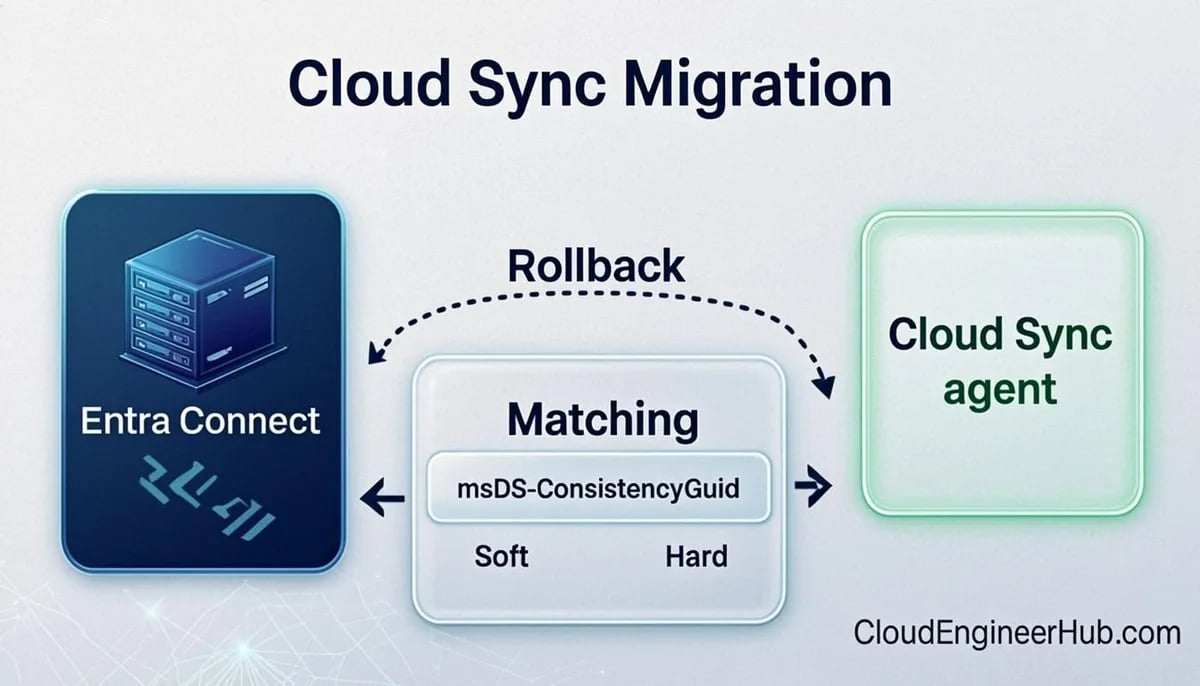
When a synchronized object first meets Entra ID, the engine attempts a soft match on proxyAddresses (primary SMTP) or UPN. If a cloud account already owns those values, sync claims it and stamps the source anchor. When soft match fails, provisioning tries to create a new object and the sync health report lights up with InvalidSoftMatch or AttributeValueMustBeUnique — both mean a duplicate cloud account is blocking the join.
A hard match aligns on the sourceAnchor instead: classic Connect Sync defaults to objectGUID, while Cloud Sync uses ms-DS-ConsistencyGuid. To force-merge a duplicated cloud account with the correct on-premises object, set the cloud user's onPremisesImmutableId to the base64 of the on-premises objectGUID:
PowerShell
1
2
3
4
# Hard match: align cloud immutableId with the on-prem objectGUID$adUser = Get-ADUser jdoe -Properties objectGuid
$immutableId = [Convert]::ToBase64String($adUser.objectGuid.ToByteArray())
Update-MgUser -UserId jdoe@contoso.com -OnPremisesImmutableId$immutableId
Run a delta sync afterward and watch the identity synchronization error report in entra.microsoft.com. Never set immutableId blindly on objects that already sync correctly — you can detach a live, mailbox-bearing account from its on-premises master.
Verify matching posture before the migration, not after:
PowerShell
1
2
3
4
5
6
7
8
Connect-MgGraph -Scopes"User.Read.All"# Cloud accounts that already carry a source anchor (would soft/hard match)
Get-MgUser -All -Property DisplayName, UserPrincipalName, OnPremisesImmutableId |
Where-Object { $_.OnPremisesImmutableId } |
Select-Object -First10 DisplayName, UserPrincipalName
# Expected output: rows of synced users with a non-empty OnPremisesImmutableId# (empty OnPremisesSyncEnabled users are cloud-only and must be reconciled first)
The Staging Server and the Cloud Sync Agent
Every production sync deployment deserves a second server in staging mode: it ingests AD changes and validates the rule set but never exports. Use it for high availability and to rehearse filter or attribute-flow changes before they touch production. Check the scheduler before any maintenance window:
Cloud Sync flips the model. Install the provisioning agent (it runs under the provAgentgMSA group-managed service account) on a domain-joined DC or member server, then configure everything in entra.microsoft.com → Hybrid management → Microsoft Entra Connect → Cloud sync. Configurations are cloud objects — OU scoping, attribute mapping, password hash sync — so you can run multiple scoped configurations and pilot a single OU before touching the tenant.
A Safe Cutover Order
Install the Cloud Sync agent and create a configuration scoped to a pilot OU.
Validate pilot accounts and password hash sync; review provisioning logs for errors.
Widen the scope in phases — Cloud Sync and Connect Sync can run side by side while scopes do not overlap.
Freeze the classic server (Set-ADSyncScheduler -SyncCycleEnabled $false) and place it in staging mode — instant rollback.
Decommission Connect Sync only after several clean delta cycles.
PowerShell
1
2
# Freeze classic sync exports before the final cutover window
Set-ADSyncScheduler -SyncCycleEnabled$false
Know the limits: Cloud Sync does not support device writeback or Exchange hybrid attribute writeback. Hybrid Exchange organizations stay on classic Connect Sync today.
Configuration Deep Dive: What Transfers and What Does Not
OU filters — transfer 1:1 as Cloud Sync scoping; document them from classic first (Get-ADSyncConnector run profiles are the forensic path).
Attribute mappings — Cloud Sync exposes expressive expression mappings for the common attributes; exotic classic extensions (custom flow rules) need re-implementation, and some cannot be done at all.
Password hash sync — a per-configuration toggle; confirm it on the pilot configuration and verify a pilot user can sign in with the on-premises password.
Group-based provisioning — Cloud Sync can scope to AD groups as well as OUs, which classic cannot; useful for phased migrations without touching OUs.
Seamless SSO / PTA — orthogonal to the sync engine, but re-verify each after cutover; the seam between engines is where SSO surprises appear.
Real-World Enterprise Scenario
A 6,500-user university ran classic Connect Sync with 14 custom sync rules accumulated over a decade. Migration started with a full inventory of those rules — most were OU filters in disguise, four were attribute expressions, two were dead. OU filters transferred as scope; the attribute expressions were rebuilt in Cloud Sync expression mappings; the dead two were deleted, to nobody's surprise. The pilot scoped a single faculty OU for two weeks while classic served the rest, then the scopes widened in five phases. The frozen classic server stayed in staging mode for a month as insurance before decommission. Total: six weeks, zero user-visible incidents, and the tenant finally has sync configuration that lives in the cloud where the rest of the identity policy already lives.
Troubleshooting
Symptom
Likely Cause
Fix
Provisioning log shows InvalidSoftMatch
A cloud-only account already owns the UPN/SMTP
Reconcile the duplicate cloud account or correct the proxyAddresses, then re-run
Provisioning log shows AttributeValueMustBeUnique
Two objects claim the same attribute (often UPN or proxyAddresses)
Find the colliding pair in the error report; fix the source attribute
Users cannot sign in after scope moves to Cloud Sync
Password hash sync not enabled on the new configuration
Enable PHS in the Cloud Sync configuration; verify with a pilot credential test
Agent shows "Disconnected" in the portal
gMSA password rotation or outbound 443 blocked
Re-register the agent; verify firewall egress for the provisioning endpoints
Objects sync twice / attribute flapping
Classic and Cloud Sync scopes overlap
Audit both engines' scopes; non-overlap is a hard requirement
onPremisesImmutableId set but no match
Base64 mismatch against the AD objectGUID
Recompute with the exact ToBase64String(objectGUID.ToByteArray()) pattern
Visual Walkthrough
Follow one attribute from on-prem AD into your Entra tenant.
Admin or HR system edits the source of truth attribute.
import
2
Delta import
Connector pulls only changes into the connector space.
rules
3
Sync rules evaluate
Inbound/outbound rules transform and filter attributes.
join
4
Metaverse join
Object matched to its metaverse identity (anchor).
export
5
Delta export
Outbound connector writes the change to Entra ID.
6
Verified in tenant
Object shows in Entra with synced-source stamp.
Entra Connect Sync — Attribute Journey. 1. Change in on-prem AD: Admin or HR system edits the source of truth attribute. — 2. Delta import: Connector pulls only changes into the connector space. — 3. Sync rules evaluate: Inbound/outbound rules transform and filter attributes. — 4. Metaverse join: Object matched to its metaverse identity (anchor). — 5. Delta export: Outbound connector writes the change to Entra ID. — 6. Verified in tenant: Object shows in Entra with synced-source stamp.
Common Errors
InvalidSoftMatch / AttributeValueMustBeUnique — duplicate cloud accounts blocking a join; fix the data, not the engine.
AuthorizationError on configuration save — the signed-in admin lacks Hybrid Identity Administrator rights.
Agent installation fails creating provAgentgMSA — missing delegated rights to create service accounts in the domain.
Export error "duplicated sourceAnchor" — two AD objects map to the same anchor; usually a cloned computer or a stale AD object pair.
SyncHealthReportingOffline — the health agent on the classic server cannot reach its endpoint; check egress before trusting "no errors" as "no problems".
Best Practices
Never run a single sync server without a staging-mode sibling, on either engine.
Inventory classic custom sync rules before migration — most are OU filters, and the rest is where the real work hides.
Pilot by OU (or group) and widen in phases; side-by-side coexistence is supported and is the whole point.
Keep the frozen classic server in staging mode for weeks after cutover; rollback should be a flag flip, not a rebuild.
Document the source anchor in use (objectGUID vs ms-DS-ConsistencyGuid) — future merge work depends on it.
Security Considerations
The provisioning agent runs under a gMSA — do not weaken it to a plain service account for convenience.
Password hash sync is a security control, not just convenience: with PHS on, leaked-credential detection and Identity Protection risk signals work for hybrid users.
Restrict local admin on both sync servers; the sync engine is a tenant-crown-jewel identity pipeline.
Review sync-scope changes like access changes: a widened OU silently onboards accounts (and their credentials) to Entra ID.
Decommission the classic server properly — an abandoned sync server with stored credentials is an attack path nobody monitors.
FAQ
Can Cloud Sync and Connect Sync run at the same time?
Yes, provided their scopes do not overlap. This side-by-side mode is the standard migration path: pilot OU by OU while classic continues for everything else.
Do I need to reinstall anything on users' devices?
No. The migration changes the provisioning engine, not device state. Entra-joined and hybrid-joined devices keep their registrations.
What happens to password hash sync during migration?
Each Cloud Sync configuration has its own PHS toggle. Enable it in the pilot configuration first and validate before widening, so no user loses the ability to sign in with the on-premises password.
Why does my Exchange hybrid deployment block this migration?
Cloud Sync does not support Exchange hybrid attribute writeback (mail-related attributes flowing back to AD). Hybrid Exchange organizations remain on classic Connect Sync.
Is hard match dangerous?
It is precise but unforgiving: setting onPremisesImmutableId merges identities based on that value alone. Verify the base64 anchor against the correct AD object before writing it.
Conclusion
The migration from classic Connect Sync to Cloud Sync is mostly a data-reconciliation project, not a technology one: matching rules and scopes decide success. Keep the staging server as your undo button, pilot one OU, and the cutover becomes the quiet operation it was always designed to be.


Comments
0No comments yet — be the first to share your thoughts.