Entra Connect Sync: Troubleshooting and Health Monitoring · CloudEngineerHub
Entra ID10 min read5 views
Entra Connect Sync: Troubleshooting and Health Monitoring
A practical runbook for Entra Connect Sync: understand the sync pipeline, fix export errors and attribute conflicts, and monitor health before users notice failed sign-ins.
C
CloudEngineerHub Team
Published: August 10, 2026· Last Updated: September 24, 2026·10 min read
Entra Connect Sync: Troubleshooting and Health Monitoring
Hybrid identity is invisible when it works and famous within minutes when it breaks: a password change in Active Directory that never reaches Microsoft Entra ID, a new hire with no mailbox, a group that exists on-premises but is missing from the cloud. Entra Connect Sync is the bridge that carries those objects, and every identity engineer needs a repeatable method to diagnose it — pipeline-level, object-level, and tenant-level.
Visual Walkthrough
Follow one attribute from on-prem AD into your Entra tenant.
Admin or HR system edits the source of truth attribute.
import
2
Delta import
Connector pulls only changes into the connector space.
rules
3
Sync rules evaluate
Inbound/outbound rules transform and filter attributes.
join
4
Metaverse join
Object matched to its metaverse identity (anchor).
export
5
Delta export
Outbound connector writes the change to Entra ID.
6
Verified in tenant
Object shows in Entra with synced-source stamp.
Entra Connect Sync — Attribute Journey. 1. Change in on-prem AD: Admin or HR system edits the source of truth attribute. — 2. Delta import: Connector pulls only changes into the connector space. — 3. Sync rules evaluate: Inbound/outbound rules transform and filter attributes. — 4. Metaverse join: Object matched to its metaverse identity (anchor). — 5. Delta export: Outbound connector writes the change to Entra ID. — 6. Verified in tenant: Object shows in Entra with synced-source stamp.
C
CloudEngineerHub Team
Author
The CloudEngineerHub editorial team — Microsoft endpoint management and cloud engineers writing hands-on guides on Intune, Azure, Entra ID, Autopilot, Defender and PowerShell. Every article is reviewed against current Microsoft documentation.
This article is that runbook. We cover how the sync pipeline actually works, the errors you will actually see, how to monitor the service with Entra Connect Health, and how to verify results from the cloud side with Microsoft Graph.
Prerequisites
A running Entra Connect Sync server (domain-joined, Windows Server 2016 or later is the current supported baseline), with local admin rights on it.
Hybrid Identity Administrator (or Global Administrator) to read sync configuration and errors in the Entra admin center.
Entra Connect Health agent installed on the sync server (included with Microsoft Entra ID P1/P2 licensing) with outbound HTTPS access to the Health service endpoints.
Familiarity with the attributes involved in matching: userPrincipalName, proxyAddresses, mail, ms-DS-ConsistencyGuid / objectGUID.
A test account in AD for end-to-end validation, and a change window for sync rule modifications.
How It Works
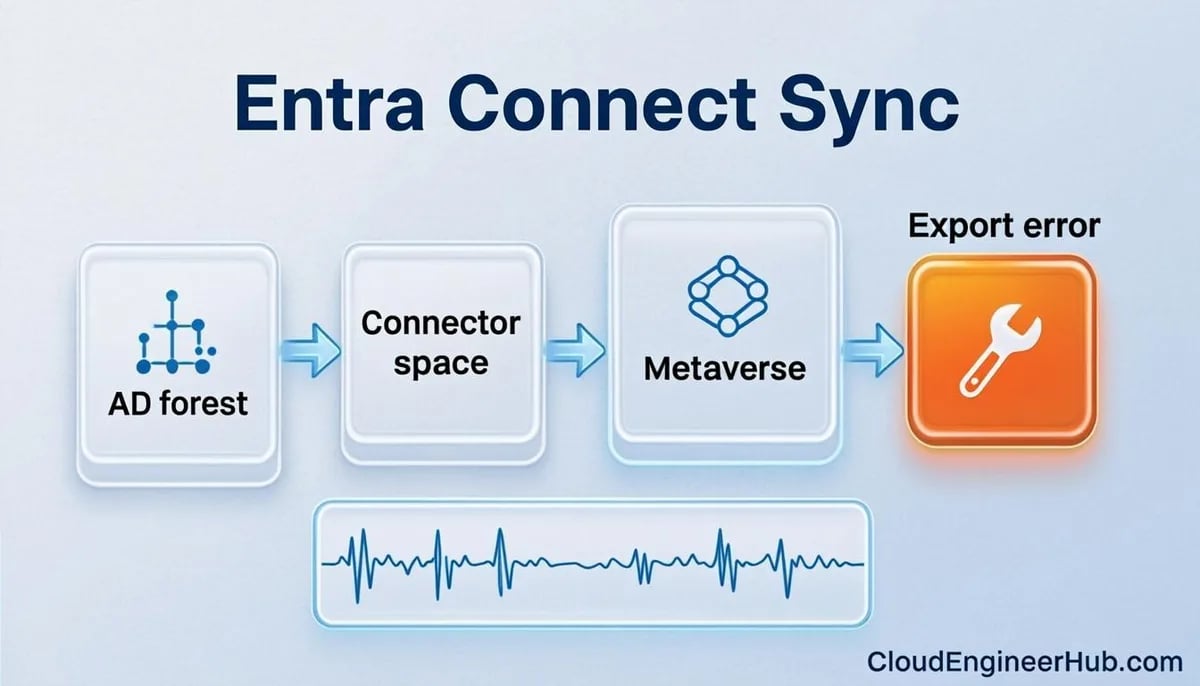
Entra Connect Sync runs three engines in sequence, every cycle: import (pull objects and attributes from each connected directory into its connector space), sync (apply sync rules to project, join, and transform objects through the metaverse), and export (push pending changes to the target directory — usually Entra ID). By default a delta cycle runs every 30 minutes; password hash sync is a separate, near-real-time channel.
Key concepts for troubleshooting:
Connector spaces: each connected directory (AD, Entra ID) has a staging area. Errors are recorded per connector — read the run history to see which stage failed (import, sync, or export) and on which connector.
Join and matching: an AD object joins a metaverse object via ms-DS-ConsistencyGuid (current default anchor); on export, the cloud object is matched to an existing Entra object by sourceAnchor, then softly by userPrincipalName and proxyAddresses. Soft-match failures are where most "duplicate user" chaos begins.
Sync rules: inbound and outbound rules with precedence decide which attribute wins. Authoritative restore of a broken attribute is almost always a sync-rule or source-attribute fix, never a cloud-side manual edit — manual cloud edits get overwritten on the next export of that attribute.
Run profiles: Full vs Delta. A full import/sync re-evaluates everything and takes longer; deltas handle normal changes. After changing sync rules you need a full sync (Start-ADSyncSyncCycle -PolicyType Initial, run from an elevated PowerShell session on the server).
The Entra admin center shows the tenant-side view under Identity > Hybrid management > Microsoft Entra Connect: last sync timestamps, sync error counts by type, and a per-object error drill-down backed by provisioning logs.
Step-by-Step Implementation (Diagnostic Workflow)
1. Confirm the service is healthy
On the sync server, check that the ADSync Windows service is running and the scheduler is enabled (the ADSync PowerShell module exposes scheduler state — Get-ADSyncScheduler shows the next cycle time and whether sync is enabled). If the scheduler was disabled for a maintenance task and never re-enabled, everything else below is noise.
2. Read the last runs in Synchronization Service Manager
Open the Synchronization Service console on the server and review the Operations tab: each run profile shows completion status per connector. A success with export errors is the most common pattern — note the error type and the DN of the affected object.
3. Classify the error in the Entra admin center
Go to Identity > Hybrid management > Microsoft Entra Connect > sync errors. The portal groups errors by type (duplicated attributes, data validation, large objects, connectivity) and suggests fixes per object. Provisioning logs (Identity > Monitoring > Provisioning logs) show the per-object pipeline including the exact failing attribute.
4. Fix at the source, then resync
Correct the offending attribute in AD (a stray proxyAddresses, a malformed UPN, a group exceeding size limits), or adjust the sync rule if transformation logic is wrong. Then trigger a delta sync from the server and re-check the run history — expect the error to clear on the next export.
5. Validate end to end from the cloud
Confirm the object surfaced correctly in Entra ID with the expected attributes, license, and group memberships. The Graph queries in the PowerShell section below are a quick tenant-side verification.
6. Baseline monitoring
Install the Entra Connect Health agent (or confirm it is installed — service name is ADHealthAdSyncAgent), and review alerts weekly: "Sync service is not running", "Sync is not recent", "Duplicate attribute sync error rate", and password hash sync stoppages. Configure email notification on the Health blade so failures reach a shared mailbox, not a departed employee's inbox.
Configuration Deep Dive
Password hash sync problems. PHS is the most common silent failure: sign-in falls back to cloud-only passwords, or hybrid users cannot authenticate after password changes. Check the Hybrid management page for "Password hash sync" status and the agent's Application event log for the Directory Synchronization source. The most frequent root causes are network filtering of the sync endpoints and permission problems reading password hashes from AD (the AD DS connector account needs the Replicate Directory Changes permissions granted by the wizard).
Duplicated attributes. Two objects claiming the same proxyAddresses produce an export error on one of them — often a former employee's mailbox alias recycled onto a shared mailbox. Fix the source attribute in AD; do not "clean up" in the cloud, because the next export cycle re-applies the conflict.
Staging mode as a safety net. Run a second server in staging mode: it imports and syncs but never exports, which makes it a tested failover and the safest place to validate sync-rule changes. Failover is a wizard operation — enable export on staging, disable the primary — but only if rule parity is maintained.
Filtered OUs and accidental deletions. Exclusion filters hide OUs from sync; if a container is accidentally unfiltered, thousands of "new" objects flood in, and Entra's accidental-deletion threshold (500 by default) blocks the export. That threshold exists to protect you — investigate before overriding it.
Cloud sync as the future path. For new deployments and many filtered-OU scenarios, Entra Cloud Sync (lightweight provisioning agents instead of a full sync server) is the strategic replacement. Migration is in-place per OU and covered in the companion migration article linked below.
Real-World Enterprise Scenario
A retail group with 12,000 employees migrated its ERP and therefore rebuilt 3,000 user accounts in AD with new UPNs. Within an hour, helpdesk was flooded: users could not log into Microsoft 365 because the cloud identities soft-matched to stale objects holding the old proxyAddresses.
The identity team used the sync error report (duplicated attributes category), fixed UPN and proxyAddresses values at the AD source in bulk, and pushed a delta sync per domain controller site. They also enabled Entra Connect Health email alerts and added a canary check: a scheduled Graph query comparing the count of synced users on-premises versus synced objects in Entra. The lesson institutionalized: sync problems are usually data problems — the pipeline faithfully delivers whatever mess AD contains.
PowerShell for Sync Verification
The server-side ADSync module is the tool for cycles and run history (run it on the sync server); from the cloud side, Graph gives you fast object-level verification:
PowerShell
1
2
3
4
5
6
7
8
# Connect and sample synced users with their sync state
Connect-MgGraph -Scopes"User.Read.All"# List first 5 users with hybrid sync attributes$users = Invoke-MgGraphRequest -Method GET -Uri `
'https://graph.microsoft.com/v1.0/users?$select=displayName,userPrincipalName,onPremisesSyncEnabled,onPremisesLastSyncDateTime&$top=5'$users.value | Select-Object displayName, userPrincipalName, onPremisesSyncEnabled | Format-Table
# Expected output: onPremisesSyncEnabled True for users synced from AD; blank for cloud-only accounts
Surface per-object provisioning errors (duplicate attributes, validation failures) without logging into the sync server:
PowerShell
1
2
3
4
5
6
7
8
Connect-MgGraph -Scopes"User.Read.All"# Objects carrying sync/provisioning errors$errs = Invoke-MgGraphRequest -Method GET -Uri `
'https://graph.microsoft.com/v1.0/users?$select=displayName,onPremisesProvisioningErrors&$top=25'$errs.value | Where-Object { $_.onPremisesProvisioningErrors } |
Select-Object displayName, @{n='Category';e={ $_.onPremisesProvisioningErrors[0].category }}
# Expected output: users with error categories such as 'PropertyConflict' or 'SynchronizationError'
Combine both queries into a weekly report and you have a lightweight health check that complements Entra Connect Health without any additional infrastructure.
Visual Walkthrough
The branch-by-branch path from "not joined" to a healthy PRT.
Device sync scope includes this OU? Sync health green?
3
Fix connectivity or scope
Allow device endpoints or widen the sync OU.
4
Re-run join
Task completes; dsregcmd flips AzureAdJoined to YES.
Hybrid Join Debug — dsregcmd Tells All. Gate: dsregcmd /status says? — Joined, no PRT: Validate SCP — Joined, no PRT: Cloud auth reachable — Joined, no PRT: Event 304/305 — Joined, no PRT: PRT acquired — Not joined: Check auto-join task — Not joined: AD Connect state — Not joined: Fix connectivity or scope — Not joined: Re-run join
Troubleshooting
Symptom
Likely cause
Fix
Users cannot sign in after AD password change
Password hash sync failed silently
Check PHS status in Hybrid management; review sync server event log; verify AD replication permissions
New hire missing in Entra ID
OU excluded from sync, or scheduler disabled
Review OU filtering; confirm scheduler enabled; run a delta sync
Export error: duplicated proxyAddresses
Two AD objects claim the same value
Correct the source attribute in AD, delta sync, verify in provisioning logs
Sync runs but nothing exports
Staging mode accidentally enabled
Disable staging mode in the wizard and re-run export
"Sync is not recent" alert
Service stopped, network blocked, or scheduler off
Cloud object matched by proxyAddresses/UPN but conflict blocked the match
Align UPN and proxyAddresses in AD; delta sync
AttributeValueMustBeUnique
Another object already owns the attribute value
Remove the duplicate value at the AD source
stopped-server-down
Cannot reach Entra endpoints (proxy/firewall/TLS)
Open required endpoints; verify proxy bypass for the sync server
ExportedChangesNotIngested
Entra did not ingest the export (throttling or transient)
Wait for the next cycle; if persistent, open a support case
LargeObject
Object exceeds size limits (usually group membership)
Reduce membership or move to a targeted sync rule scope
Replication access denied
AD DS connector account lost Replicate Directory Changes
Re-grant permissions and re-enter credentials in the wizard
Best Practices
Never edit cloud-side attributes that originate from AD — fix the source or the sync rule, or the next cycle reverts your change.
Keep a staging-mode server with identical rules; test every rule change there first.
Baseline Entra Connect Health alerts to a shared mailbox with a weekly review.
Document every custom sync rule and its precedence; undocumented rules are unfixable at 2 a.m.
Schedule full syncs only after rule changes — constant full cycles waste the server and delay deltas.
Monitor the last-sync timestamps in the Entra admin center with an external watchdog (Graph query or Health API), because the pipeline can die quietly.
Before any AD restructuring (UPN changes, domain moves), run it on a copy or in staging and watch for soft-match fallout.
Security Considerations
The sync server is a tier-0 asset: it reads every password hash and can write identity attributes tenant-wide. Restrict admin access to it, place it in a protected management VLAN, patch it on the same cadence as domain controllers, and disable local sign-in for everyone except sync administrators. Keep the AD DS connector account's permissions limited to what the wizard grants. Finally, prefer password hash sync over pass-through authentication unless you specifically need it — PHS gives you identity protection leak detection and a simpler failure domain with no dependency on an extra agent.
FAQ
How often does the delta sync run?
Every 30 minutes by default; password hash sync runs on its own more frequent schedule. Both are visible in the scheduler settings on the sync server.
Can I run two active sync servers?
No — only one server may export to Entra ID at a time. The second server must be in staging mode.
Is Entra Connect Health free?
It is included with Microsoft Entra ID P1/P2 (and EMS) licensing; it requires installing the Health agent on the sync server.
What is the accidental deletion threshold?
By default Entra blocks an export that deletes more than 500 objects at once. Clear the block in the Entra admin center only after verifying the deletions are intentional.
Should I migrate to Entra Cloud Sync?
Evaluate it for new deployments, filtered OU scenarios, and when you want lightweight agents instead of a full sync server. Full feature parity (device write-back, some Exchange hybrid features) is still a factor for some tenants.
Conclusion
Entra Connect Sync fails in predictable ways, and almost always because of the data it carries. Learn the pipeline (import, sync, export per connector), read errors in the portal instead of guessing, fix at the AD source, and keep Health monitoring watching between incidents. With a staging server, documented rules, and a Graph-based canary check, sync becomes boring — which is exactly what you want from hybrid identity.


Comments
0No comments yet — be the first to share your thoughts.