Conditional Access and Device Compliance: Best Practices · CloudEngineerHub
Entra ID12 min read4 views
Conditional Access and Device Compliance: Best Practices
Make Conditional Access and Intune device compliance work together: rollout order, grace periods, BYOD vs corporate, report-only mode, break-glass design, and reporting scripts.
C
CloudEngineerHub Team
Published: August 21, 2026· Last Updated: September 24, 2026·12 min read
Conditional Access and Device Compliance: Best Practices
Conditional Access is the enforcement arm of your security policy; device compliance is the evidence it consumes. When Intune marks a device compliant, Microsoft Entra ID can require that state before granting access to mail, files, and apps — the single most impactful Zero Trust control most organizations can deploy. It is also the easiest control to deploy badly: one policy in the wrong order locks out an executive team from email for a morning. This guide lays out the practices that make the pairing robust.
Visual Walkthrough
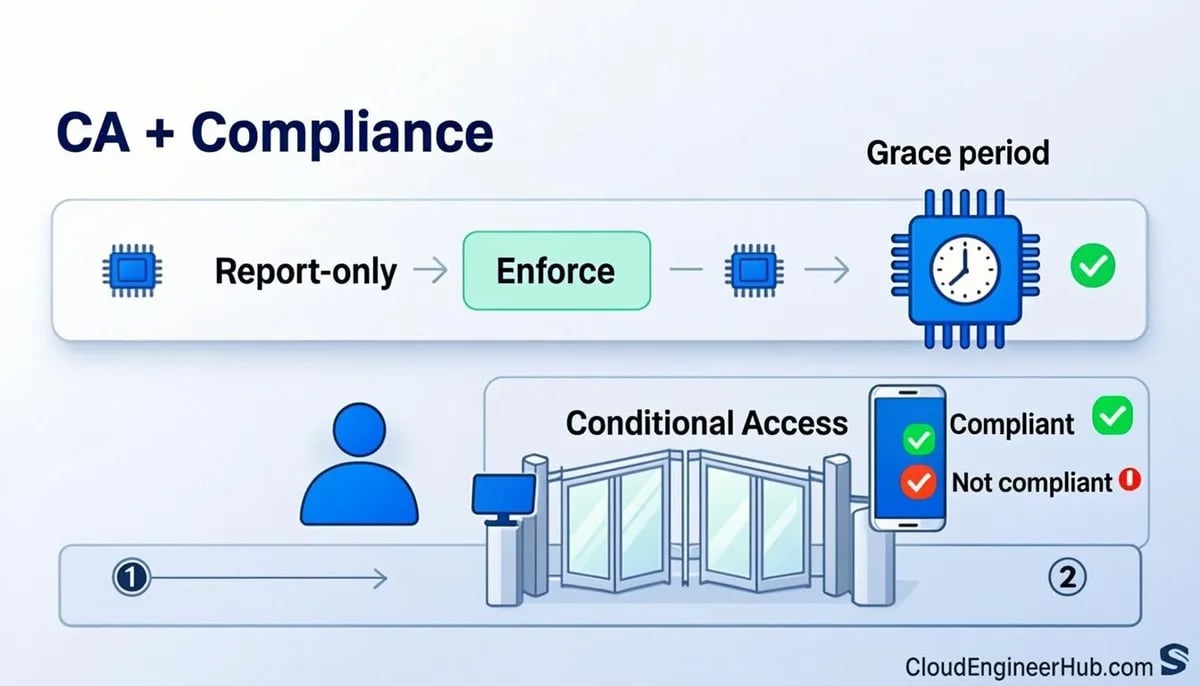
The gate every sign-in passes: collect signals, AND the policies, decide.
C
CloudEngineerHub Team
Author
The CloudEngineerHub editorial team — Microsoft endpoint management and cloud engineers writing hands-on guides on Intune, Azure, Entra ID, Autopilot, Defender and PowerShell. Every article is reviewed against current Microsoft documentation.
Intune device enrollment working for corporate platforms (Windows, macOS, iOS/iPadOS, Android).
Microsoft Entra ID P1 licensing for Conditional Access and dynamic groups.
Compliance policies defined per platform before any enforcement.
Two or more cloud-only break-glass accounts excluded from all Conditional Access policies.
Access to entra.microsoft.com (Conditional Access, sign-in logs) and intune.microsoft.com (compliance policies, device state).
How It Works
The loop has three stations. First, the compliance policy in Intune evaluates rules on the device — encryption, OS version, password, Defender state — and the device reports its state at check-in. Second, that state syncs to the device object in Entra ID, visible on the device as compliant or noncompliant. Third, a Conditional Access policy with the "Require device to be marked as compliant" grant evaluates that state during sign-in and allows or blocks token issuance for the targeted cloud apps.
Two behaviors matter for design. Compliance is asynchronous: a device can be compliant in Intune but carry a stale claim in Entra for a short window, so expect a transition period after enrollment before access flows. And compliance failures are user-hostile by design: without a grace period, a device that misses an OS deadline blocks access to mail immediately, which converts a patching problem into a help desk problem. The compliance policy's conditional launch actions let you send a notification and define a grace period in days before access blocks.
Step-by-Step Implementation
1. Build the compliance foundation
Create per-platform compliance policies covering encryption, OS version floors, Defender status, and screen lock. Keep them deliberately simpler than your aspirations at first — compliance is the gate to email, and every rule is an outage candidate. Assign to device groups, not All Devices, during rollout.
2. Decide the no-policy default
In Intune compliance settings, the tenant-wide option "Mark devices with no compliance policy assigned as" defaults to compliant. Leave it as compliant until every corporate device falls under a policy, then flip to noncompliant as a later, deliberate change with communication.
3. Add grace periods that match your patch rhythm
Set conditional launch actions: Block access with a grace period that reflects how long devices legitimately lag your patch ring (for example, 7-14 days for OS versions). Users see notifications during the window rather than locks.
4. Stage Conditional Access in report-only mode
Create the "Require compliant device for Microsoft 365" policy targeting Exchange Online, SharePoint, Teams, and Office 365 apps. Run in report-only mode for one to two weeks and read the sign-in logs: every "not applied" line is a future ticket.
5. Enforce for corporate, protect BYOD differently
Flip the policy to On for corporate device groups. For personal devices, prefer app protection policies and the "Require app protection policy" grant rather than requiring enrolled, compliant devices — BYOD enrollment is a privacy conversation you may not win.
6. Monitor continuously
Watch the noncompliant device count, sign-in failures attributed to the compliant-device grant, and grace period expirations. The reporting script below gives you the daily snapshot.
Configuration Deep Dive
Policy order and targeting. Evaluate the compliant-device policy after your baseline policies (block legacy auth, require MFA for admins). Use filters for devices when BYOD and corporate collide on the same platforms; trust types (Microsoft Entra joined, Microsoft Entra registered) are a cleaner discriminator than OS version.
Break-glass. Two cloud-only accounts, excluded from every CA policy, monitored for use, with credentials sealed in a vault. Compliance enforcement policies are exactly the kind of change that produces lockouts — break-glass is how you recover with dignity.
What compliance actually gates. The grant applies to the cloud apps you target, not to the network. Devices fail compliance and keep working on the LAN; mail and documents stop syncing. Communicate that scope so the enforcement story is accurate.
Compliance recalculation. Devices re-evaluate compliance on check-in and on schedule changes. A policy edit ripples through the fleet over hours; do not chase individual devices in the first hour after a change.
Real-World Enterprise Scenario
A 5,000-employee professional services firm enforced compliant-device access for Exchange, SharePoint, and Teams in three waves. Wave one ran report-only for ten days and surfaced 380 devices enrolled but never assigned a compliance policy — the exact population that would have been locked out under a naive All Devices rollout. After fixing assignments and setting a 14-day grace period, they enforced for corporate Windows and macOS, then for iOS and Android. Six months later the control had one measurable side effect: OS update adoption moved from 68 to 97 percent within the grace window, because the compliance gate made update rings self-enforcing. BYOD users stayed on app protection policies with no enrollment requirement.
PowerShell for Compliance and Conditional Access Reporting
Script 1 — daily noncompliant device snapshot with paging:
Compliance → Conditional Access — The Handshake. Gate: Device evaluates compliance — Compliant: All settings pass — Compliant: Device marked compliant — Compliant: CA grants access — Non-compliant: Grace period runs — Non-compliant: User notified — Non-compliant: CA blocks after grace — Non-compliant: Remediation restores
Common Errors
Assigning the CA policy to All Users before compliance coverage is complete. Any device without a policy or enrollment is a lockout. Coverage first, enforcement second.
Leaving "mark devices with no compliance policy as compliant" unchanged while assuming coverage. Audit the no-policy population with the inventory script before flipping the default.
Zero grace periods. Access-blocking rules without grace turn every missed deadline into an outage; match grace windows to your patch cadence.
Testing CA with admin accounts. Test with pilot users on pilot devices; admins have different device fleets and will give you false confidence.
Excluding entire groups (such as IT) from enforcement. Exceptions become permanent; use break-glass accounts for emergency access, not group carve-outs.
Best Practices
Deploy compliance policies platform by platform; verify each platform is green before the CA policy touches it.
Run every new Conditional Access policy in report-only mode for at least a week and actually read the logs.
Enforce per device group in waves; keep All Devices for later, when coverage is proven.
Pair compliant-device grants with app protection policy grants so BYOD has a designed path, not an accidental one.
Review the noncompliant population daily during rollout and weekly thereafter; trends beat snapshots.
Document the compliance policy set and the CA set in one place — they are one system even though they live in two portals.
Security Considerations
Requiring compliant devices for Microsoft 365 is a core Zero Trust control; its absence means any device with valid credentials gets tokens.
Protect the compliance pipeline: accounts that can edit compliance policies effectively control access to company data; scope the Intune Administrator role.
Monitor sign-in logs for the compliant-device grant's failures — repeated failures can indicate both user issues and attacker probing.
Break-glass accounts must be cloud-only, excluded, monitored, and tested quarterly; an untested break-glass plan is a rumor.
Consider device filters to separate trust types, and remember that Entra registered (BYOD) devices should not satisfy a corporate compliance requirement by accident.
FAQ
Q: What happens to a user on a noncompliant device?
A: With the compliant-device grant enforced, token issuance for targeted apps is blocked — mail and files stop syncing until the device is remediated. With a grace period configured, the user gets notifications during the window before blocking.
Q: How fast does compliance state reach Entra ID?
A: Devices report state at check-in and the device object updates shortly after; expect a short window between enrollment, first policy evaluation, and usable access. Plan onboarding communications around it.
Q: Should we require compliant devices for everything?
A: Start with the Microsoft 365 workload (Exchange, SharePoint, Teams, Office 365). Broadening to all cloud apps is possible, but each app set adds failure modes to validate in report-only first.
Q: Can BYOD users get mail without enrolling the whole device?
A: Yes. Use app protection policies with the "Require app protection policy" grant in Conditional Access. The app is managed; the personal device is not enrolled.
Q: Do compliance policies replace antivirus or encryption settings?
A: No. Compliance evaluates state; configuration profiles, baselines, and Defender policies create that state. You deploy configuration and verify it with compliance.
Conclusion
Conditional Access plus device compliance turns "we have a policy" into "we have a control." The recipe is unglamorous: coverage before enforcement, grace periods that match reality, report-only before on, break-glass before everything. Get those four right and the compliant-device grant becomes the quietest, most valuable policy in your tenant.


Comments
0No comments yet — be the first to share your thoughts.