CBS.log and DISM Forensics: Fix Windows Patching · CloudEngineerHub
Advanced Windows Patching Troubleshooting10 min read3 views
Advanced Windows Patching Troubleshooting: CBS.log, DISM and Component Store Forensics
Read CBS.log like a coroner's report: DISM health modes, component store corruption, pending.xml traps and the big three patching error codes, dissected.
C
CloudEngineerHub Team
Published: September 6, 2026· Last Updated: October 3, 2026·10 min read
Windows Patching Forensics: CBS.log, DISM and the Component Store
A fleet is patched green in Intune, then forty devices refuse the June cumulative with the same hex code — and suddenly you are the person who has to explain WinSxS to an audience that just wants updates to install. Component store forensics is the difference between re-imaging every failure and fixing the store in twenty minutes. This guide covers the tools, the logs, and the three error codes you will actually see in production.
Visual Walkthrough
The exact forensic path when servicing corruption blocks updates.
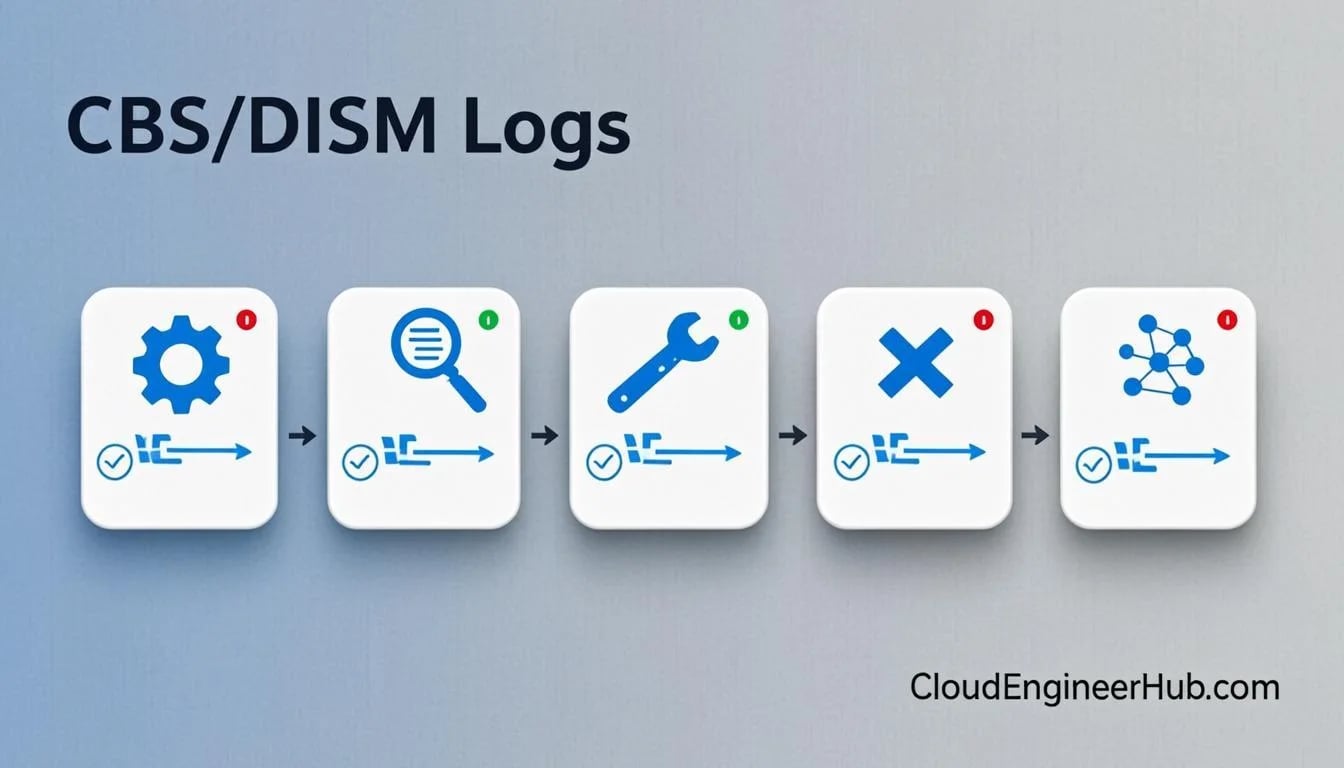
Interactive FlowComponent Store Forensics — CBS.log to Repair6/6
1
Symptom: servicing hang
Update installs fail with CBS errors or stalls at a percentage.
evidence
2
Read CBS.log timestamps
Filter [SR] and errors around the failure window.
quick check
3
DISM /CheckHealth
Fast flag: is the component store flagged corrupt?
deep scan
4
DISM /ScanHealth
Deep scan builds the corruption map (slower, thorough).
repair
5
DISM /RestoreHealth
Repair from Windows Update or a known-good source.
6
SFC + retry servicing
System file check, reboot, rerun the update — verify success.
Component Store Forensics — CBS.log to Repair. 1. Symptom: servicing hang: Update installs fail with CBS errors or stalls at a percentage. — 2. Read CBS.log timestamps: Filter [SR] and errors around the failure window. — 3. DISM /CheckHealth: Fast flag: is the component store flagged corrupt? — 4. DISM /ScanHealth: Deep scan builds the corruption map (slower, thorough). — 5. DISM /RestoreHealth: Repair from Windows Update or a known-good source. — 6. SFC + retry servicing: System file check, reboot, rerun the update — verify success.
C
CloudEngineerHub Team
Author
The CloudEngineerHub editorial team — Microsoft endpoint management and cloud engineers writing hands-on guides on Intune, Azure, Entra ID, Autopilot, Defender and PowerShell. Every article is reviewed against current Microsoft documentation.
Local administrator on the affected device, with an elevated PowerShell or cmd session.
A working copy of the servicing artifacts: C:\Windows\Logs\CBS\CBS.log, C:\Windows\Logs\CBS\CheckSur.log (produced after a DISM ... /ScanHealth or when Windows Update runs its store check), and the Microsoft-Windows-Servicing/Admin event channel.
Enough free disk space to matter — RestoreHealth and cumulative installs both stage payloads in WinSxS; below roughly 10 GB free you are diagnosing the wrong problem first.
A slipstreamed Windows 11 ISO (current build) mounted or extracted, for the offline-source repair path when Windows Update itself is the broken component.
If you manage updates through Intune or WSUS, read access to the deployment reports so you can separate one broken store from a broken servicing channel.
What the Component Store Actually Is (and Why It Fails)
C:\Windows\WinSxS is not a junk folder — it is the only copy of every servicing payload, manifest, and hardlink source on the machine. Every system file on the disk is a hardlink into the store; when you "delete" a file, the store keeps its copy. Cumulative updates install by projecting new components from the store, so an update fails whenever the store is missing a payload, holds a corrupted manifest, or contains a transaction that never finished.
Store corruption has four usual suspects, in rough order of frequency: an interrupted install (power loss, forced reboot, battery pull mid-commit), disk-level problems that surface as CRC errors during payload expansion, aggressive "cleanup" utilities that deleted hardlink targets the store still references, and third-party filter drivers (antivirus, encryption agents) holding files open while CBS tries to swap them. The first two dominate in fleets; the third dominates in home labs that became office machines.
Field note: Before any deep surgery, run chkdsk on the system volume. Half of the "mystery corruption" cases I have escalated came back to file system errors that would have re-corrupted any repair you performed on top of them.
Start Here: Reboot State and the Servicing Event Log
The single most common false positive in patching troubleshooting is a device that is not broken — it is mid-transaction. A pending servicing operation blocks every subsequent install, and its symptoms look identical to corruption. Check it first:
PowerShell
1
2
3
4
5
# Pending reboot markers the servicing stack honors
Test-Path 'HKLM:\SOFTWARE\Microsoft\Windows\CurrentVersion\Component Based Servicing\RebootPending'
Test-Path 'C:\Windows\WinSxS\pending.xml'# Packages waiting in a pre-install or staged state
dism /online /get-packages | Select-String -Pattern'Pending' -Context2,1
If any of those return positive, the device needs to complete (or cleanly revert) its pending transaction before you judge anything else. Then read what servicing itself recorded — the channel timestamps each commit and failure with an HRESULT you can correlate against CBS.log:
You are looking for the event ID associated with the failed package and its HRESULT — that code, not the generic Windows Update UI error, is what you take forward.
Reading CBS.log Without Drowning
CBS.log is verbose by design; one cumulative install can write tens of thousands of lines. Do not read it — filter it. Three patterns carry nearly all diagnostic value: [SR] lines (system repair activity), Failed lines with package names, and lines containing your error code.
Read the last failure from the bottom up: CBS logs the payload it was processing, the package identity, and the failing operation in the lines immediately above the error. If the log points you to CheckSur.log, the servicing stack ran a store consistency check — open it: it lists the specific packages it could not verify, which is your repair shopping list.
Field note: Time is your filter. Note the minute the update failed in Settings or your management console, then search CBS.log for that timestamp window. Reading "the last error" can land you in a failure from three updates ago.
DISM Health Modes: What Each One Actually Does
The three /Cleanup-Image health modes get used interchangeably in forum advice, and that is how machines end up in worse shape. They are not interchangeable:
Mode
What it checks / changes
Time cost
Use when
/CheckHealth
Reads the CBS-persisted corruption flag only; repairs nothing
Seconds
First look — a fast "has CBS already flagged corruption?"
/ScanHealth
Full store scan, writes findings to CheckSur.log; repairs nothing
Minutes to tens of minutes
Confirming corruption and getting the affected-package list
/RestoreHealth
Full scan and repairs, fetching good payloads from Windows Update (or a /Source)
Longest
After scan confirms damage — this is the repair itself
/AnalyzeComponentStore
Reports WinSxS actual vs hardlinked size, cleanup recommendation
Minutes
Capacity questions and cleanup decisions, not corruption
Two ground rules. First, RestoreHealth writes to the store — run it deliberately, on a device with a completed reboot state and disk space. Second, if Windows Update is itself the broken component (proxy, WSUS authority, dead transport), online RestoreHealth fails with the same code you started with — your cue to use an explicit source:
The index after the WIM must match the edition and build you are repairing — list indexes with dism /get-wiminfo /wimfile:E:\sources\install.wim. On mult-edition media, picking index 1 when the device runs a different edition is a classic self-inflicted failure.
Dissecting the Big Three Error Codes
0x80073712 — the store is corrupt, full stop
ERROR_SXS_COMPONENT_STORE_CORRUPT means a scan found manifest or payload damage. There is no workaround layer: run /ScanHealth, read CheckSur.log for the affected packages, run /RestoreHealth with a valid source, then reboot and reattempt the cumulative. If RestoreHealth completes but the same code returns on the next update, stop repairing and move the device to the in-place repair ladder below — repeated repair-then-break cycles usually mean disk or filter-driver trouble, not the store.
0x800f0831 — a payload the transaction needs is missing
This code means CBS tried to service a package whose payload or one of its dependencies is absent from the store. It is the signature of aggressive cleanup (someone ran a component cleanup with ResetBase semantics at the wrong time, or a third-party cleaner deleted hardlink targets) and of failed prerequisite installs. The fix is targeted: /RestoreHealth restores the missing payload from Windows Update or source media; if the log names a specific KB as the missing dependency, installing that prerequisite standalone from the Microsoft Update Catalog, then the cumulative, resolves it without full store surgery.
0x800f0922 — the install failed at execution, not at validation
The store passed validation and the transaction died mid-flight. The usual culprits, in order: insufficient free space on the system volume, an existing pending transaction blocking the new one, and network-path failures when the payload has to be fetched (devices behind proxies or with a WSUS/Intune delivery optimization conflict). Check space, clear the pending state via a completed reboot, and test whether the device can reach Windows Update endpoints directly. This is also the code most likely to appear fleet-wide at once — when it does, suspect delivery infrastructure before forty separate stores.
Visual Walkthrough
Why the order of servicing stack and cumulative updates matters.
Offline servicing completes; Windows reports the new revision.
Windows Servicing Stack — SSU + LCU Anatomy. 1. SSU first: Servicing Stack Update upgrades the updater itself. — 2. LCU delivered: Latest Cumulative Update rides on top of a healthy SSU. — 3. CBS transaction: Component-Based Servicing stages payloads transactionally. — 4. Pending reboot markers: Registry markers hold the state until restart. — 5. Finalize on reboot: Offline servicing completes; Windows reports the new revision.
The pending.xml Trap
C:\Windows\WinSxS\pending.xml is the journal of an unfinished transaction. The trap: engineers find it, delete it, and reboot — and now the store has a half-projected component set with no journal to resolve it. Never delete it by hand.
The supported escape hatch is DISM /Cleanup-Image /RevertPendingActions, and it has a hard constraint: it is an offline operation. Boot the device to Windows RE (Shift + Restart, or boot media), then run it against the offline image — the documented recovery path for devices stuck in boot loops from pending servicing. Online, the correct move is usually simpler: reboot cleanly, confirm the pending markers from earlier clear, then re-run your update. If a pending transaction will not complete across reboots (the classic endless "working on updates, 30%"), take the WinRE revert path or escalate to the ladder.
Field note: The "endless 30%" and "endless 100%" reboot loops are pending transactions by definition — imaging the device while it is in that state teaches your users that patch day means data loss. Budget one calm hour with WinRE before you queue a reimage.
The In-Place Repair Ladder
Escalate through these in order; each step is cheaper and less disruptive than the one after it. Document where each device lands — your fleet statistics will tell you which failures deserve Microsoft escalation versus a standing process change.
Complete reboot state, check disk, free space. Non-negotiable preamble; skipping it invalidates every later step.
DISM /Online /Cleanup-Image /RestoreHealth online. Fixes store damage when Windows Update transport works.
RestoreHealth with /Source WIM and /LimitAccess. Fixes store damage when the transport does not. Follow with sfc /scannow — SFC repairs projected system files using the now-healthy store, and CBS.log [SR] lines show you exactly what it restored.
In-place repair upgrade. Mount the current-build ISO and run setup.exe, choosing to keep files and apps. This re-projects the OS from known-good media while preserving data, apps, and domain/MDM enrollment — the highest-success final move after steps 2-3 fail; Intune-enrolled devices keep enrollment and reapply policy.
Wipe and reload only when the in-place upgrade itself fails, which almost always means hardware, firmware, or a hostile filter driver.
One caution on cleanup: DISM /Online /Cleanup-Image /StartComponentCleanup is safe on managed fleets, but adding /ResetBase removes the ability to uninstall installed updates — where a cumulative may need rollback, ResetBase is a one-way door to run only by policy decision, never as a troubleshooting reflex.
Key takeaways
Check reboot/pending state before diagnosing anything: RebootPending registry key, pending.xml, and dism /online /get-packages staged entries produce corruption-mimicking failures.
CBS.log rewards filters, not reads: search [SR] lines, your specific HRESULT, and the failure timestamp window; CheckSur.log names the packages a scan could not verify.
/CheckHealth reads a flag, /ScanHealth confirms and lists damage, /RestoreHealth repairs — and /AnalyzeComponentStore answers size questions, not corruption questions.
0x80073712 = store corrupt; 0x800f0831 = missing payload/dependency (Catalog the named KB if needed); 0x800f0922 = execution failure (space, pending, transport) and the most likely fleet-wide code.
Never delete pending.xml; the supported undo is the offline DISM /RevertPendingActions from Windows RE.
The repair ladder: reboot state → online RestoreHealth → sourced RestoreHealth + SFC → in-place repair upgrade → wipe. ResetBase is a policy decision, not a fix.
Frequently asked questions
Can I run RestoreHealth remotely across the fleet?
The DISM operation runs locally by design, so fleet remediation means scripting the same command via your management platform's remediation feature, with the exit code as the compliance signal. Mind runtime limits and scheduling: ScanHealth and RestoreHealth can run long on aged machines, so stagger execution rather than blasting every device in one window.
Does SFC replace DISM for update failures?
No — they repair different layers, and the order matters. SFC verifies and repairs files projected from the store onto the live system; DISM repairs the store those files come from. Running SFC on a corrupted store either does nothing or re-projects from damaged sources — hence the ladder runs DISM first and SFC immediately after.
Why does an update succeed on my desktop image but fail on the same build in Intune?
Because the store state, not the OS build, decides the outcome. Your reference image has a curated store; a device that has survived three years of cleanups, third-party agents, and interrupted transactions does not. When a code reproduces across long-lived devices but never fresh ones, automate sourced RestoreHealth — and audit the cleanup utilities and filter drivers those devices share.

Comments
0No comments yet — be the first to share your thoughts.