Microsoft Defender for Office 365: Safe Links and Safe Attachments · CloudEngineerHub
Microsoft 36511 min read4 views
Microsoft Defender for Office 365: Safe Links and Safe Attachments
Deploy Safe Links and Safe Attachments in Microsoft Defender for Office 365: policy design, impersonation protection, presets, validation, and PowerShell baselines.
A
Anuradha Kumari
Published: August 6, 2026· Last Updated: September 24, 2026·11 min read
Microsoft Defender for Office 365: Safe Links and Safe Attachments
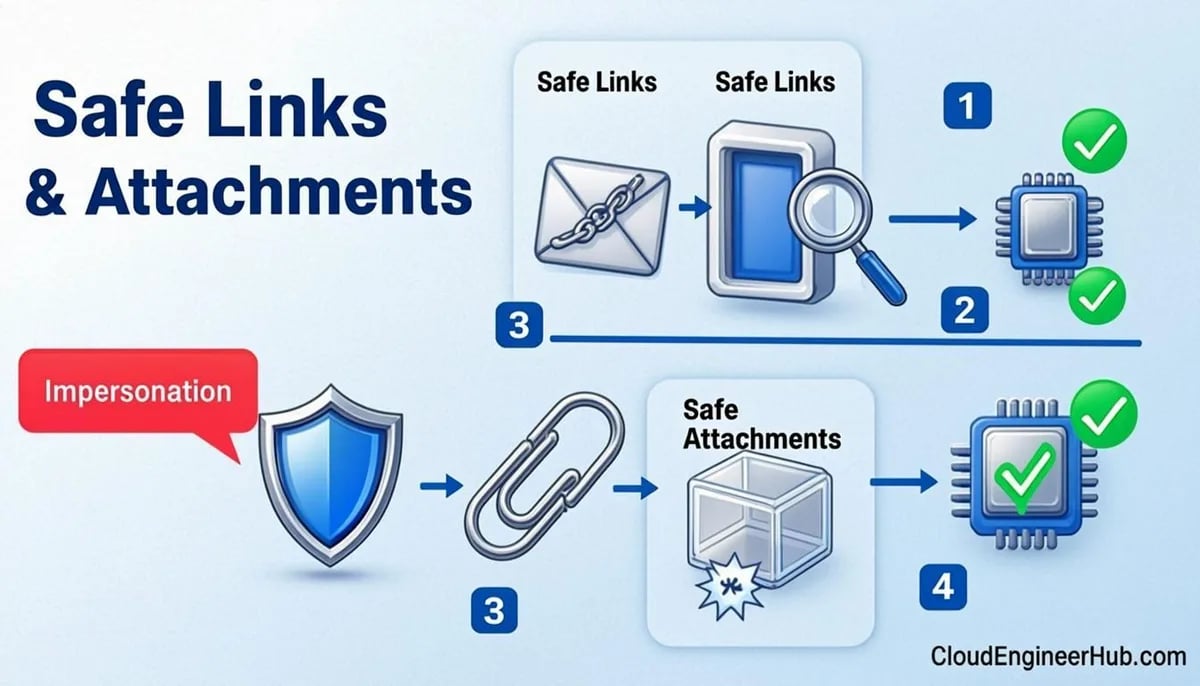
Email is still the front door attackers use. A credential-phishing wave does not need a zero-day — it needs one rushed click on a lookalike URL or a weaponized invoice attachment. Microsoft Defender for Office 365 (MDO) attacks both delivery paths directly: Safe Links rewrites and re-checks URLs at click time, and Safe Attachments detonates files in a sandbox before they ever reach the inbox. Deployed well, they convert the moment of user error from a potential breach into a logged, blocked event.
Visual Walkthrough
What Defender for Office does to every URL and attachment before the click.
A
Anuradha Kumari
Author
Endpoint management specialist focused on Microsoft Intune, Windows Autopilot and modern EUC. Writes practical deployment, compliance and troubleshooting guides for IT teams.
Exchange Online Protection filters at the perimeter.
rewrite
2
URL rewritten
Safe Links wraps URLs; the click becomes a policy decision.
detonate
3
Attachment detonated
Safe Attachments runs files in a sandboxed VM.
verdict
4
Verdict applied
Clean delivers; malicious quarantines with user nudge.
click time
5
Click-time check
At click, reputation re-checked — zero-hour protection.
6
Telemetry to SOC
Campaign views + Explorer feed threat hunting.
Safe Links & Safe Attachments — Message Journey. 1. Mail arrives at EOP: Exchange Online Protection filters at the perimeter. — 2. URL rewritten: Safe Links wraps URLs; the click becomes a policy decision. — 3. Attachment detonated: Safe Attachments runs files in a sandboxed VM. — 4. Verdict applied: Clean delivers; malicious quarantines with user nudge. — 5. Click-time check: At click, reputation re-checked — zero-hour protection. — 6. Telemetry to SOC: Campaign views + Explorer feed threat hunting.
This guide walks through a production-grade rollout: the licensing split between Plan 1 and Plan 2, the preset-versus-custom policy decision, the exact Safe Links and Safe Attachments settings that matter, and how to validate the stack before an incident proves it for you.
Prerequisites
Licensing: Microsoft Defender for Office 365 Plan 1 (included in Microsoft 365 Business Premium) covers Safe Links, Safe Attachments, and impersonation protection. Plan 2 (in Microsoft 365 E5 or the E5 Security add-on) adds Threat Explorer, automated investigation, and Attack simulation training.
Permissions: Security Administrator or Organization Management role to configure policies; Exchange Online roles for mail-flow diagnostics.
Portals: security.microsoft.com (Defender portal) for all MDO policy work; portal.azure.com only for underlying identity and Conditional Access context.
PowerShell: ExchangeOnlineManagement module v3+ on your admin workstation.
No mail-flow changes: MDO policies layer on top of existing routing — MX records and hybrid configurations stay untouched.
How It Works
Safe Links operates in two stages. At delivery, URLs in messages are rewritten to route through a Microsoft protection service (the well-known safelinks.protection.outlook.com wrapper). At click time, the service re-evaluates the destination against block lists, detonation results, and reputation — because a clean URL at delivery can host malware an hour later. Policies control whether clicks are blocked, whether users can click through warnings, and whether Teams and Office documents get the same treatment.
Safe Attachments intercepts attachments during mail flow and detonates them in a virtualized environment, looking for payloads that signature engines miss. Policies choose the action: Block (quarantine the whole message on detection), Replace (strip the attachment, keep the body), or Dynamic Delivery (deliver the body immediately, re-inject the attachment after the verdict). Detections can be redirected to a SOC mailbox for review.
Around both sits the anti-phishing layer: mailbox intelligence, user and domain impersonation protection, and first-contact safety tips catch lookalike-sender attacks. Zero-hour auto-purge (ZAP) quietly removes messages that turn malicious after delivery.
Step-by-Step Implementation
Step 1: Start from preset security policies
In security.microsoft.com, go to Email & collaboration > Policies & rules > Threat policies > Preset security policies. Apply the Standard preset to all users first — it ships a sane baseline for anti-phishing, Safe Links, and Safe Attachments. Organizations with stricter risk tolerance layer the Strict preset on a defined group (executives, finance). Custom policies you create later automatically take precedence over presets, so presets are the floor, never the ceiling.
Step 2: Harden the anti-phishing baseline
Open the anti-phishing policy assigned to your users and enable the features that catch identity abuse: mailbox intelligence protection, targeted-user protection (add your executives and treasury staff), targeted-domain protection for your brand domains, and first-contact safety tips. Raise the advanced phishing threshold for high-risk users — Aggressive trades a few false positives for meaningfully better impersonation detection.
Step 3: Deploy Safe Links
Create a custom Safe Links policy scoped to all accepted domains with these settings: rewrite URLs on, scan applied to email, Teams, and Office apps, click-through disabled, and track clicks enabled (validate against your privacy requirements first). Add do-not-rewrite entries sparingly — each one is a permanent exception your SOC should be able to explain.
Step 4: Deploy Safe Attachments
Create a Safe Attachments policy with action Block, redirect detected malware to a monitored SOC mailbox, and keep the "quarantine on error" behavior on. For departments where attachment latency breaks workflows (large CAD files, print shops), pilot Dynamic Delivery there first rather than carving them out entirely.
Step 5: Validate before you declare victory
Run a phishing simulation through Attack simulation training targeting a pilot group, send a benign-but-suspicious test attachment, and confirm both the rewrite (hover a link in Outlook) and the verdict path in threat reports.
Configuration Deep Dive
Three settings cause most of the operational friction. Allow click-through is the single most impactful Safe Links switch: leaving it on means users can override every warning, so leave it off for everyone except a tiny, audited exception group. Track clicks powers the URL click reports your SOC will use during investigations — some European privacy teams require a documented decision here, so make the decision explicitly rather than by default. Deliver message after scan controls the latency trade-off on Safe Attachments: with it on, mail waits for the detonation verdict; with it off, suspicious attachments are replaced pending analysis.
Understand the Plan 1 versus Plan 2 split before committing: Plan 1 gives you the protections (Safe Links, Safe Attachments, impersonation) plus real-time detections; Plan 2 adds Threat Explorer hunting, automated investigation and response, and the full attack simulation training engine.
Quarantine policy mapping is the other hidden lever: detections land in quarantine policies that control whether users can self-release, who gets notifications, and how long items are held. Align those with your false-positive workflow early.
Real-World Enterprise Scenario
A 2,400-user financial-services firm skipped straight to aggressive custom policies on day one and spent two weeks fighting latency complaints and marketing-mail false positives. The redesign followed the same order: Standard presets org-wide, Strict for the 60 executives, custom anti-phishing with protected users and domains, Safe Links after a two-week monitor-only period, Safe Attachments in Block mode with SOC redirection.
Six weeks later, a spoofed CFO wire-transfer wave hit during quarter close. Impersonation protection quarantined 214 of 218 messages before anyone saw them; Safe Links blocked the two clicks that did happen; ZAP removed the rest post-delivery. The incident closed in under two hours with zero credential disclosures; the simulation phish-report rate fell from 19% to 4%.
PowerShell for Safe Links and Safe Attachments
Baseline the full policy stack with the Exchange Online Management module. Run from a pre-consented admin workstation:
PowerShell
1
2
3
4
5
6
7
8
9
10
11
12
13
14
15
16
17
18
19
20
21
22
23
24
25
26
27
28
29
30
31
32
33
34
35
36
37
# Requires: Install-Module ExchangeOnlineManagement (v3+)
Connect-ExchangeOnline -UserPrincipalName admin@contoso.com
# 1) Harden anti-phishing: intelligence + impersonation + safety tips
Set-AntiPhishPolicy -Identity"Office365 AntiPhish Default" `
-PhishThresholdLevel2 `
-EnableMailboxIntelligence$true `
-EnableMailboxIntelligenceProtection$true `
-EnableTargetedUserProtection$true `
-EnableOrganizationDomainsProtection$true `
-EnableFirstContactSafetyTip$true# Expected output: none on success; verify with Get-AntiPhishPolicy | fl Name,PhishThresholdLevel# 2) Safe Links: rewrite + time-of-click, click-through OFF
New-SafeLinksPolicy -Name"SLP-All-Domains" `
-EnableSafeLinksForEmail$true `
-EnableSafeLinksForOffice$true `
-EnableSafeLinksForTeams$true `
-ScanUrls$true `
-TrackClicks$true `
-AllowClickThrough$false `
-DeliverMessageAfterScan$true# Expected output: confirmation echo of the new policy name
New-SafeLinksRule -Name"SLR-All-Domains" -SafeLinksPolicy"SLP-All-Domains" `
-RecipientDomainIs (Get-AcceptedDomain).Name -Priority0# Expected output: rule created in Enabled state# 3) Safe Attachments: Block + SOC redirect, quarantine on error
New-SafeAttachmentPolicy -Name"SAP-All-Domains" `
-Enable$true -Action Block -Redirect$true `
-RedirectAddress soc@contoso.com -ActionOnError$true# Expected output: confirmation echo of the new policy name
New-SafeAttachmentRule -Name"SAR-All-Domains" -SafeAttachmentPolicy"SAP-All-Domains" `
-RecipientDomainIs (Get-AcceptedDomain).Name -Priority0# Expected output: rule created in Enabled state
Verify the deployment and pull recent click evidence for your first review meeting:
PowerShell
1
2
3
4
5
6
7
8
9
10
11
Get-SafeLinksRule | Format-Table Name, State, Priority
# Expected output: SLR-All-Domains Enabled 0
Get-SafeAttachmentRule | Format-Table Name, State, Priority
# Expected output: SAR-All-Domains Enabled 0# URL click trace for the last 7 days (proof Safe Links is intercepting)
Get-UrlTrace -StartDate (Get-Date).AddDays(-7) -EndDate (Get-Date) |
Select-Object Timestamp, UrlDomain, Verdict, DeliveryAction |
Format-Table
# Expected output: rows with Verdict Blocked / Pass; empty output means policies are not reaching users
Troubleshooting
Symptom
Likely cause
Fix
URLs are not being rewritten
Policy rule scope excludes the user, or the user lacks an MDO license
Check rule scope and license assignment; allow 30 minutes for propagation
Attachment delivery suddenly slow
Detonation scan waiting on verdict (DeliverMessageAfterScan on)
Use Dynamic Delivery for latency-sensitive teams; keep Block for everyone else
Users can click through warnings
AllowClickThrough still $true in the applied policy
Set to $false; confirm which policy actually applies with Get-SafeLinksRule
Impersonation detection silent
Protected users/domains not configured, or mailbox intelligence protection off
Add targeted users and domains, then re-test with a lookalike sender
Teams messages not protected
Safe Links for Teams disabled in the policy
Enable EnableSafeLinksForTeams; needs the policy plus MDO licensing
Visual Walkthrough
The four implementation pillars mapped to concrete M365 controls.
Interactive FlowZero Trust in Microsoft 365 — Verify Explicitly6/6
Keep an owner for the protected-executive list; impersonation protection is only as current as that list.
Security Considerations
Safe Links click tracking generates telemetry about what users click — socialize that with privacy teams where required. URL rewriting can break links that validate themselves (some vendor portals, signed-in report links); handle those through reviewed exceptions, not blanket rewrites-off. Remember that MDO protects email, Teams, and Office URLs — it does not protect arbitrary web browsing, which is where Microsoft Defender for Endpoint's web protection takes over. Finally, keep the redirect SOC mailbox itself locked down: it receives live malware samples.
FAQ
Is Safe Links included without an E5 license?
Yes — Plan 1 (as in Microsoft 365 Business Premium) includes Safe Links, Safe Attachments, and impersonation protection; Plan 2 adds Threat Explorer and attack simulation training.
Does URL rewriting break legitimate links?
Occasionally — mostly links that run their own validation or expire quickly. Use the do-not-rewrite list surgically, with an owner and a review date.
What is the difference between Block and Dynamic Delivery?
Block quarantines the message until the attachment verdict returns; Dynamic Delivery delivers the body immediately and injects the attachment after a clean verdict.
How fast does a newly weaponized URL get caught?
Safe Links re-checks at click time, so a URL that turns malicious after delivery is still evaluated at the moment of the click — the core argument for leaving rewriting on.
Can users release quarantined messages themselves?
That is controlled by quarantine policies: you decide per detection type whether users can release, only request release, or see nothing.
Conclusion
Safe Links and Safe Attachments succeed when they are boring: policies applied to everyone, click-through off, detections flowing somewhere monitored, and simulations proving the stack quarterly. Start from presets, harden impersonation protection for the people attackers actually target, and validate with a test wave before production finds the gaps for you.

Comments
0No comments yet — be the first to share your thoughts.